Best monitor for eye strain
You need the best monitor for eye strain if you want to protect your eyes during long hours at your desk. The EVNIA 27M2N5501UK stands out with advanced BOE BNL technology and features that prioritize your eye comfort. Studies show that up to 78% of digital device users experience eye strain, and more than half of computer users report symptoms every day.
Burning or stinging sensation
Dryness or grittiness
Blurred vision
Headaches
Category | Symptoms |
|---|---|
Eye Symptoms | Burning or stinging sensation, Dryness or grittiness, Redness or irritation, Excessive tearing, Sensitivity to light |
Vision Symptoms | Blurred vision, Difficulty focusing, Double vision, Seeing halos or glare |
Body Symptoms | Headaches, Neck or shoulder pain, General fatigue |
Choosing a monitor with eye-friendly features helps you prevent these issues and supports your long-term health.
Key Takeaways
Choose monitors with flicker-free technology to reduce eye fatigue and headaches during long hours of use.
Look for blue light filtering features to minimize visual fatigue, especially in low-light environments.
Select monitors with ergonomic designs that allow height and tilt adjustments to promote healthy posture and reduce neck strain.
Opt for larger screens with higher resolutions to avoid squinting and enhance comfort while working or gaming.
Follow the 20-20-20 rule: every 20 minutes, look at something 20 feet away for 20 seconds to help relax your eyes.
Eye Comfort Features

Flicker-Free Screens
You spend hours in front of your monitor, so flicker-free technology is essential. Flicker-free screens use Direct Current (DC) dimming and optimized refresh rates to eliminate flickering. This stable display reduces eye fatigue, dry eyes, and headaches. Your visual system works best with consistent light, so a flicker-free monitor helps you stay focused and comfortable.
Blue Light Filtering
Many monitors offer blue light filtering to reduce visual fatigue. While scientific studies show limited benefits for blue-light filtering lenses, monitors with built-in blue light reduction can still help shift colors away from harsh blue tones. This adjustment may make your viewing experience more comfortable, especially in low-light settings.
BOE BNL Technology
BOE BNL technology sets the best monitor apart from standard displays. This innovation adjusts screen vibration and optimizes the light spectrum. It reduces harmful blue light, increases beneficial red light, and adds infrared light. You get a reading experience similar to paper, with minimized glare and reflection. The technology adapts brightness and color temperature to your environment, supporting eye comfort throughout the day.
Anti-Glare Coating
Anti-glare coatings play a key role in reducing eye strain. Matte coatings scatter light and cut reflections, making them ideal for bright rooms. Nano-texture coatings maintain image sharpness while reducing glare, so you can work comfortably in demanding lighting conditions.
Coating Type | Glare Reduction | Image Sharpness | Best Environment |
|---|---|---|---|
Matte | High | Good | Bright, Uncontrolled Light |
Glossy | Low | Excellent | Dark, Controlled Light |
Nano-Texture | High | Excellent | Bright, Demanding Use |
Adjustable Brightness
You need a monitor with adjustable brightness to match your workspace. Monitors with a range of 100 to 300 nits are usually sufficient. Brightness above 300 nits may cause discomfort. Adjusting brightness helps you avoid eye strain, especially during long sessions.
Ergonomic Design
Ergonomic design supports healthy posture and eye health. Adjustable height, tilt, and swivel features let you position your monitor for comfort. Place your monitor 20 to 40 inches away, with the top at or slightly below eye level. These adjustments help prevent neck strain and chronic fatigue.
Screen Size & Resolution
Choosing the right screen size and resolution is important for eye comfort. Larger screens with higher resolution reduce the need to squint or lean forward. The best monitor for eye strain offers a spacious display and sharp visuals, making it easier for you to work or play without discomfort.
Tip: Good lighting in your workspace supports better vision and reduces headaches. Consider using night mode or dark mode to lower screen brightness and minimize glare.
Best Monitor Recommendations
Choosing the best monitor for eye strain requires a careful look at the latest eye comfort technologies. You want a display that combines advanced engineering with practical features to protect your vision during long hours of use. The following recommendations stand out for their commitment to eye health.
EVNIA 27M2N5501UK
You get a premium experience with the EVNIA 27M2N5501UK. This model leads the market with BOE BNL technology, which adapts the screen’s light spectrum and vibration in real time. The technology optimizes blue light levels, increases beneficial red light, and introduces infrared light for a paper-like reading experience. You benefit from time-varying adaptation, spectral optimization, and light shape optimization, which work together to minimize glare and reflection. The monitor also features flicker-free technology and an anti-glare coating, so your eyes stay comfortable even in bright environments. Adjustable brightness and a fully ergonomic stand allow you to set up your workspace for maximum comfort. These features make the EVNIA 27M2N5501UK the best monitor for users who prioritize eye health and long-term comfort.
Tip: Adjust the monitor’s height and tilt to keep the top of the screen at or just below eye level. This helps reduce neck and shoulder strain.
Criteria | Description |
|---|---|
Adjustable Stand | Height, tilt, swivel, and pivot adjustments for good posture and reduced strain. |
Reduces blue light emission to alleviate eye fatigue and improve sleep quality. | |
Flicker-Free Technology | Eliminates screen flickering, a common cause of eye strain and headaches. |
AOC Q27G4SL/WS
You experience advanced eye comfort with the AOC Q27G4SL/WS. This 27-inch QHD monitor uses circular polarization technology to reduce glare and minimize eye strain, especially during extended gaming sessions. The monitor incorporates Flicker-Free and Anti-Blue Light technology, protecting your eyesight during long hours of use. The Q27G4SL/WS is the first 320 Hz monitor to receive TÜV Rheinland Circular Polarization certification, which confirms its effectiveness in minimizing eye strain. You also benefit from an ergonomic stand with height, tilt, and swivel adjustments, allowing you to create a comfortable and healthy workspace.
Circular polarization simulates the natural diffusion of sunlight, minimizing direct light exposure to your eyes.
Flicker-Free and Anti-Blue Light technology help prevent dryness and fatigue.
Ergonomic adjustments support good posture and reduce physical discomfort.
Note: Many users and experts praise the AOC Q27G4SL/WS for its ability to maintain eye comfort during long gaming sessions.
Thunderobot ZERO
You get a unique approach to eye comfort with the Thunderobot ZERO. This monitor uses an asymmetric light source to provide uniform, glare-free brightness, reducing shadows and eye strain. Flicker-Free technology ensures stable illumination, so you avoid visual fatigue even after prolonged use. Low Blue Light protection keeps your eyes feeling fresh, and adjustable color temperatures let you customize the display for focus or relaxation.
Feature | Description |
|---|---|
Asymmetric Light Source | Uniform, glare-free brightness reduces eye strain and shadows. |
Flicker-Free Technology | Stable illumination prevents visual fatigue. |
Low Blue Light Protection | Gentle on the eyes, reduces dryness and fatigue. |
Adjustable Color Temperatures | Six options from cool white to warm yellow for personalized comfort. |
You can adjust the Thunderobot ZERO to match your environment and preferences, making it a strong contender for the best monitor if you want to minimize eye strain.
Callout: When choosing a monitor, look for features that address both visual and physical comfort. The right combination of technology and ergonomics helps you stay productive and healthy.
Choosing the Right Monitor
Assess Your Needs
You should start by evaluating your daily habits and workspace setup. Consider how many hours you spend in front of your monitor and what tasks you perform most often. If you work with spreadsheets, design, or gaming, your requirements will differ. Place your monitor at eye level, about an arm's length away, and adjust the tilt to minimize glare. Use a supportive chair and maintain a 90-degree elbow angle for comfort. Balance natural and artificial light in your room to reduce eye fatigue.
Factor | IPS LCD | AMOLED |
|---|---|---|
Brightness Management | Stable brightness without flicker issues | May flicker at lower brightness due to PWM |
Blue Light Emission | Consistent illumination, generally lower | Can vary; lower at reduced brightness but may offset benefits due to PWM |
Colour Reproduction | Accurate and consistent | Vibrant but can lead to visual fatigue |
Eye Strain During Use | More eye-friendly for long periods | May cause discomfort for sensitive users |
Tip: IPS LCD monitors offer stable brightness and consistent color, making them a reliable choice for long work sessions.
Match Features to Use
You need to match monitor features to your primary activities. Office work benefits from night mode and blue light filters, while gaming requires higher brightness and fast refresh rates. Adjust brightness based on your room’s lighting conditions. For office tasks, set brightness at 50–60% indoors. For gaming, increase brightness to 70–80% in moderate lighting.
Usage Scenario | Recommended Brightness Level | Additional Features |
|---|---|---|
Office Work | 50–60% indoors | Night mode, blue light filters |
Gaming | 70–80% in moderate lighting | Adjust brightness for room lighting |
Note: Synchronize ambient light with on-screen brightness for optimal eye comfort.
Consider Budget
You should set a realistic budget before shopping for a monitor. Advanced eye comfort features often come with a higher price tag. General monitors with these features range from $600 to $1,500. Entry-level models, such as the BenQ GW Series, start at $85. Avoid overpaying for features you do not need, such as high refresh rates for basic office tasks.
Monitor Type | Price Range |
|---|---|
General Monitors | $600–$1,500 |
Common mistakes include buying glossy screens for bright rooms or skipping calibration. Matte screens reduce glare, and proper calibration ensures accurate colors.
Callout: Prioritize features that match your usage and workspace. The right monitor supports your productivity and protects your eyes.
Tips to Reduce Eye Strain
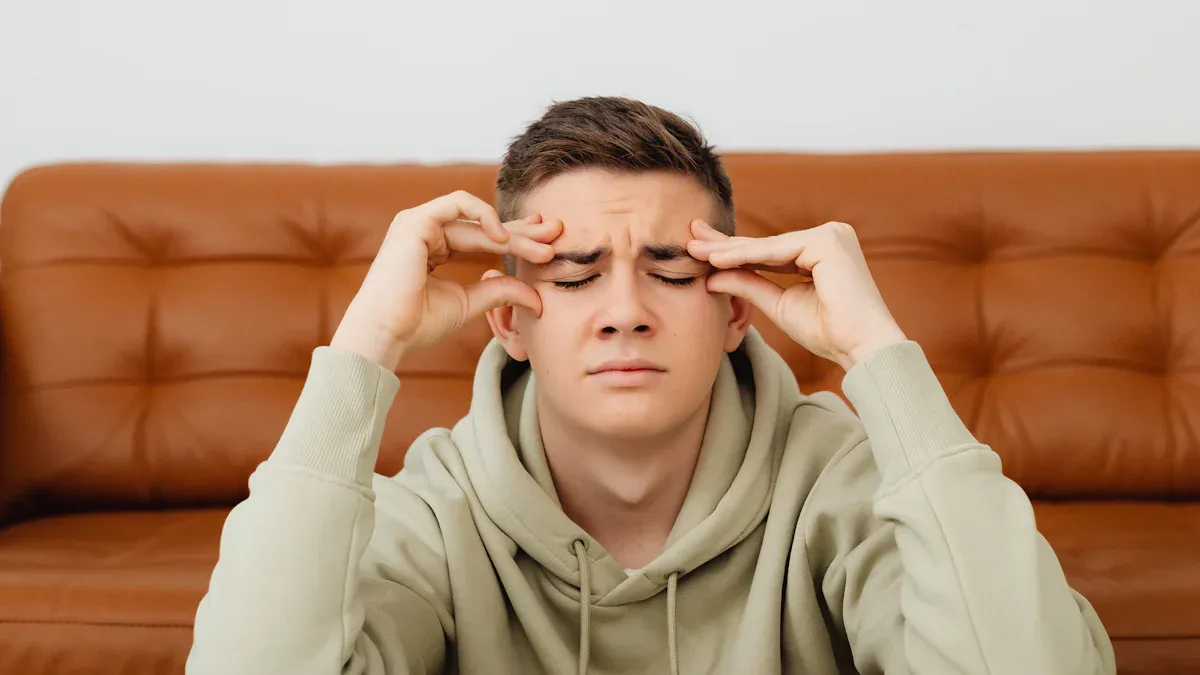
Monitor Setup
You can reduce eye strain by optimizing your monitor setup. Start by positioning your screen so the top edge sits at or just below eye level. Keep your monitor about 25 inches from your face, roughly an arm’s length. Adjust the brightness and contrast to match your room’s lighting. Use anti-glare filters to minimize reflections. Make a habit of blinking more often to prevent dry eyes. If you wear glasses, consider lenses designed for digital screens.
Position your monitor at eye level
Maintain a distance of 20–28 inches
Use anti-glare filters
Adjust brightness and contrast
Blink frequently
Consider specialized eyewear
Tip: Follow the 20-20-20 rule: Every 20 minutes, look at something 20 feet away for 20 seconds. This simple habit helps your eyes relax and reduces fatigue.
Lighting
Proper lighting in your workspace supports eye comfort. Avoid placing your monitor directly in front of windows or under harsh overhead lights. Gentle background light behind your monitor stabilizes pupil size and reduces stress on your eyes.
Reduce glare by positioning your monitor away from direct light sources
Add soft ambient lighting behind your screen
Match screen brightness to room lighting
Studies confirm that gentle background light behind your monitor improves comfort and reduces accommodation stress during long sessions.
Healthy Habits
You protect your eyes best by building healthy habits. Schedule regular eye exams to catch vision problems early. Limit your screen time when possible. Take frequent breaks, not just every 20 minutes—shorter, self-paced breaks can be even more effective.
Limit screen time
Take frequent breaks
Blink often
Optimize your workspace
Consistent breaks and mindful habits help you maintain optimal eye health and reduce symptoms of digital eye strain.
You deserve the best monitor for eye strain, equipped with features like ergonomic design, blue light blocking, and anti-glare technology. These options help you maintain comfort and protect your vision over time.
Feature | Benefit | Long-term Impact |
|---|---|---|
Ergonomic Design | Reduces neck and eye strain | Less chronic pain and discomfort |
Blue Light Blocking | Minimizes eye fatigue | Improved eye health |
Anti-Glare Technology | Enhances visibility and comfort | Less eye strain during long use |
You should combine advanced monitor technology with healthy habits, such as taking regular breaks and adjusting lighting, to support your eye health.
Practice mindful usage and follow the 20-20-20 rule.
Position your screen properly and use softer lighting.
Prioritizing eye comfort ensures you stay productive and comfortable every day.
FAQ
What monitor features help reduce eye strain the most?
You benefit most from flicker-free screens, blue light filtering, anti-glare coatings, and ergonomic stands. These features work together to minimize discomfort during long sessions.
How often should you take breaks when using a monitor?
You should follow the 20-20-20 rule. Every 20 minutes, look at something 20 feet away for 20 seconds.
This simple habit helps your eyes relax and prevents fatigue.
Does screen resolution affect eye comfort?
Yes. Higher resolution screens display sharper text and images. You read more easily and avoid squinting.
Resolution | Comfort Level |
|---|---|
QHD/4K | High |
FHD | Moderate |
Can gaming monitors also be good for eye health?
Absolutely. Many gaming monitors, like the AOC Q27G4SL/WS, include eye comfort features such as circular polarizers, flicker-free technology, and ergonomic adjustments. You enjoy both performance and protection.
See Also
Effective Ways to Shield Your Eyes From Screens
A Simple Guide to Choosing Between LED and LCD Monitors
Three Affordable Gaming Monitors to Consider for 2025