What is dual monitor and dual mode monitor
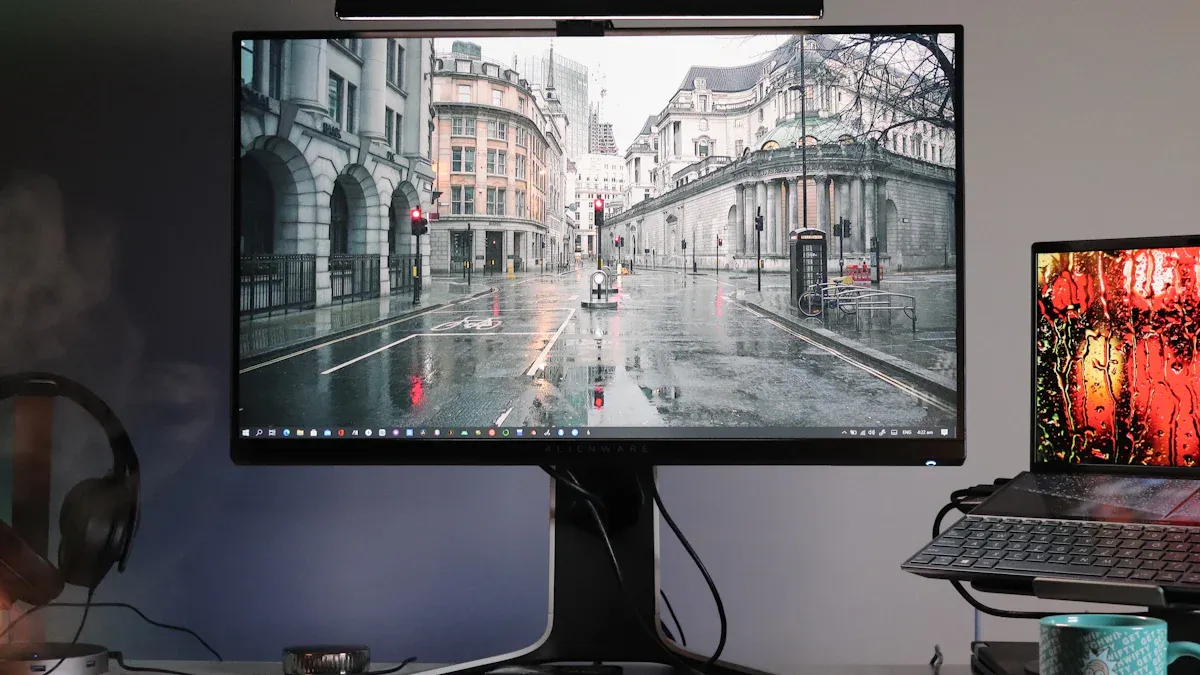
A dual monitor setup uses two screens side by side to expand your workspace, making it easier for you to manage multiple tasks at once. A dual mode monitor lets you switch between high-resolution and high-refresh-rate modes. These technologies matter because they boost comfort, efficiency, and performance. Many professionals report that dual monitors make dividing tasks simple and increase productivity. For example:
You can enter data more easily with two screens, reducing tab switching.
Game developers find dual displays essential for project work.
Teams have seen productivity rise by up to 40% and errors drop by 65%.
You might wonder what these setups are, how they work, and which one fits your needs best.
Key Takeaways
A dual monitor setup expands your workspace, allowing you to manage multiple tasks efficiently and boost productivity.
Dual mode monitors offer flexibility by allowing users to switch between high-resolution and high-refresh-rate modes, catering to both work and gaming needs.
Using dual monitors can increase productivity by up to 40% and reduce errors by 65%, making them ideal for professionals in various fields.
When choosing between setups, consider your daily tasks; dual monitors are great for multitasking, while dual mode monitors provide versatility for different activities.
Ensure your computer's hardware supports your monitor choice, and check for compatibility to maximize performance.
Dual Monitor Setup
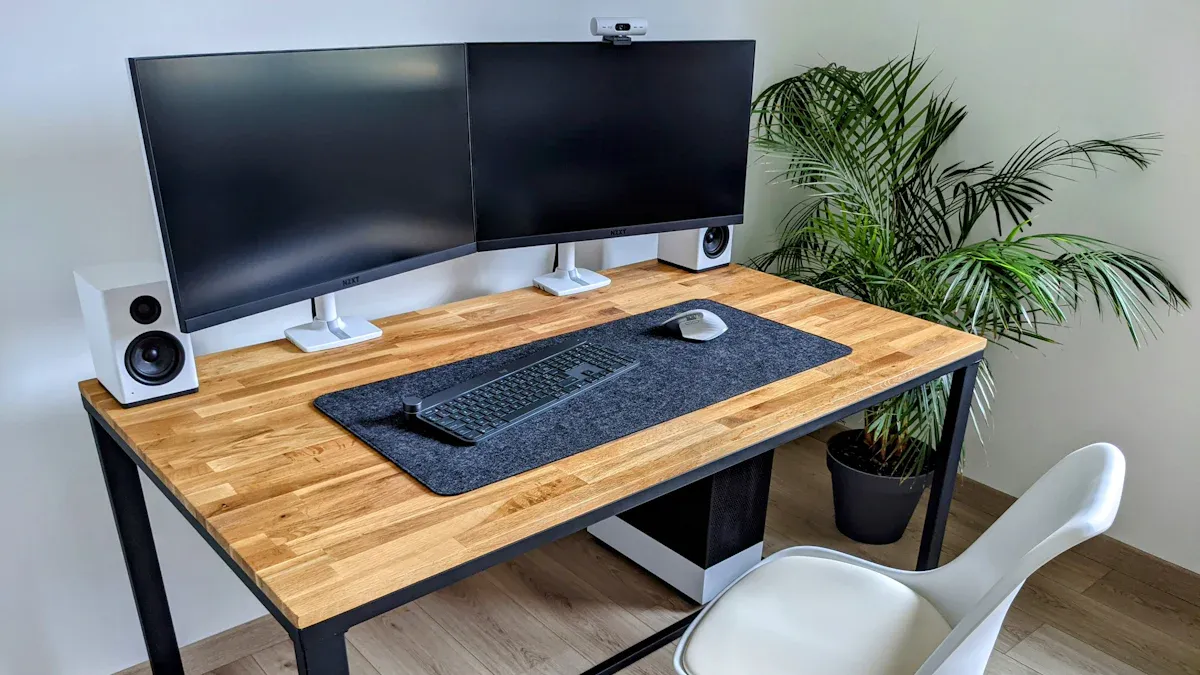
What Is a Dual Monitor
A dual monitor setup means you use two screens with one computer. You can place these screens side by side or stack them, depending on your workspace. This setup gives you more room to view and manage your tasks. Many people use dual monitor configurations at home and in the office. For example, coders often keep their code on one screen and reference documentation on the other. Designers might use one display for their main canvas and the second for tools or palettes. You can choose the arrangement that fits your workflow best.
How Dual Monitors Work
You connect two monitors to your computer using available ports on your graphics card or docking station. Here is a simple step-by-step process:
Power down your computer before connecting the monitors.
Plug each monitor into an open port.
Turn on the monitors, then start your computer.
Open your display settings from the desktop.
Identify each monitor and arrange them to match your physical setup.
Choose to extend your display for a larger workspace or duplicate it to mirror your main screen.
Set your main display for your taskbar and desktop icons.
Adjust the resolution and orientation for each monitor.
This process lets you use both screens as one large workspace or mirror your main screen for presentations.
Dual Monitor Benefits
You gain many advantages when you use a dual monitor setup. You can work with multiple applications at the same time, which reduces the need to switch between windows. This setup helps you compare documents side by side and drag files across screens. You can dedicate one screen to communication tools and keep your main work on the other. This organization improves your workflow and keeps you focused.
Studies show that dual monitor setups can boost productivity and reduce errors. Here is a table with some findings:
Study Source | Productivity Gain | Time Savings | Error Reduction |
|---|---|---|---|
Canadian Hospital | 1.5-3 minutes faster | $6,000 annual savings | N/A |
University of Utah | 16% faster edits | N/A | 33% fewer errors |
You can see that using two screens can save time and help you work more accurately.
Use Cases
You can find dual monitor setups in many fields. Here are some common examples:
Field | Use Case Description |
|---|---|
Software Developers | Code on one screen and documentation or application previews on the other. |
Data Analysts | Spreadsheets on one monitor, data sources or charts on the second. |
Graphic Designers | Clean workspace on the primary monitor while keeping tools, palettes, or timelines on the secondary display. |
Writers & Researchers | Draft open on one screen and reference materials or notes on the other. |
Administrative Professionals | Manage communication channels (email/Slack) on one monitor while handling primary tasks on the other. |
You can also use dual monitors for video calls, online classes, or gaming. This setup helps you keep important information visible and makes multitasking easier.
Tip: A dual monitor setup can help you eliminate context switching, supercharge multitasking, and enhance data comparison. You can keep your main application on one screen and reference tools or communication on the other.
Dual Mode Monitor Features
What Is a Dual Mode Monitor
A dual mode monitor is a display that can operate in two distinct modes. You can choose between a high-resolution mode, such as 4K, and a high-refresh-rate mode, like 300Hz or higher. This flexibility allows you to optimize your monitor for different tasks. You do not need to buy separate monitors for gaming and productivity. Instead, you can switch modes to match your needs.
Dual mode monitors can operate at either 1080p with high refresh rates (300Hz+) for competitive gaming or at 4K with lower refresh rates. This allows users to switch modes based on their gaming needs, optimizing their experience. They do not have inherent drawbacks compared to standard 4K monitors of similar speed and are often priced similarly, making them a viable option for gamers seeking both high resolution and high refresh rates.
You will notice that dual mode monitors differ from a dual monitor setup. While a dual monitor setup gives you more screen space, a dual mode monitor gives you more flexibility in how you use a single screen.
Switching Modes
Switching between high-resolution and high-refresh-rate modes is simple. Dual mode monitors use a technology called integer scaling. This process lets you change from 4K at 160Hz to 1080p at 320Hz, for example. The monitor pairs pixels together when you lower the resolution. This method keeps the image sharp and avoids blurriness.
You can switch modes through your monitor’s on-screen menu or your computer’s display settings. The monitor communicates its capabilities to your PC using two different EDID tables. This ensures that both modes run at their native resolution and refresh rate.
Both modes run at their native resolution and refresh rate.
No scaling issues occur since the computer outputs a native image.
Results in perfectly crisp images, avoiding visual artifacts.
In 1080p mode, you can achieve very high refresh rates. This is ideal for fast-paced games. The monitor keeps up with high frame rates from modern graphics cards. You get a smooth and responsive experience.
Dual Mode Advantages
You gain several advantages with a dual mode monitor. You can use high resolution for tasks that need clarity, such as photo editing or watching 4K videos. When you want to play competitive games, you can switch to high-refresh-rate mode. This gives you faster response times and smoother motion.
Content creators benefit from the sharpness of 4K mode. You can see fine details in your work. Gamers enjoy the speed and fluidity of high-refresh-rate mode. You do not have to compromise between image quality and performance.
Tip: If you want both stunning visuals and top-tier gaming performance, a dual mode monitor offers the best of both worlds in a single device.
Applications
You can use dual mode monitors in many professional and gaming environments. The table below shows how each mode fits different tasks:
Mode | Applications in Professional Environments | Applications in Gaming Environments |
|---|---|---|
High Resolution Mode | Ideal for productivity tasks requiring clarity (coding, writing, etc.) | Best for open world RPGs and 4K HDR streaming |
High Refresh Rate Mode | Faster desktop tracking for work | Preferred for online multiplayer and esports, FPS games |
You might use high resolution for editing photos, designing graphics, or reading text. You might switch to high refresh rates for first-person shooters or racing games. This flexibility makes dual mode monitors a smart choice for users who want more from their display than a traditional dual monitor setup.
Dual Monitor vs Dual Mode
Key Differences
You can compare dual monitor and dual mode monitor setups by looking at how they change your workspace and workflow. The table below highlights the main differences:
Feature/Benefit | Dual Monitor Setup | Dual Mode Monitor Setup |
|---|---|---|
Screen Real Estate | More space for multitasking and organization | One screen, may need to switch between windows |
Multitasking Efficiency | Run multiple apps side by side | Less efficient, toggling between apps |
Previewing Multiple Assets | View main and alternative shots at once | Limited to one view at a time |
Workflow Organization | Spread tools and panels across screens | Interface can feel cluttered |
Collaboration | Multiple users can view different screens | Less effective for teamwork |
A dual monitor setup gives you more room to work and helps you organize tasks. A dual mode monitor offers flexibility in resolution and refresh rate but does not expand your workspace.
Choosing Your Monitor
You should choose your monitor based on your daily tasks and space. If you need to run several programs at once, a dual monitor setup can boost your productivity. You can finish work faster and have more time for other activities. If you want a single screen that can switch between high resolution and high refresh rates, a dual mode monitor is a smart choice. This option works well for gaming and creative work.
Consider these points when making your decision:
Dual monitors help you multitask and stay organized.
Dual mode monitors give you flexibility for both work and play.
Desk space and budget can affect your choice. Dual mode monitors often cost around $1,000, while good gaming monitors start at $300.
Tip: Make sure your desk is wide enough for two monitors. A width of 55–60 inches is ideal for comfort.
Compatibility Tips
You need to check your computer’s hardware before setting up new monitors. Look at your graphics card and available ports. Make sure your cables match your monitor’s needs. Update your drivers and firmware for the best results. Adjust your operating system’s display settings for arrangement and scaling. If you use two monitors, try to match their size and resolution for a better viewing experience. Calibrating both screens can help keep colors and brightness consistent.
Check graphics hardware and outputs.
Choose the right cables and monitor types.
Update drivers and firmware.
Arrange and scale displays in your settings.
Plan for enough desk space and power outlets.
Note: Even with identical monitors, you may need to calibrate them for the best image quality.
Technology Insights
Connectivity Options
You can connect dual monitors or dual mode monitors using several types of ports. Most modern monitors support HDMI and DisplayPort connections. Some also offer USB-C or Thunderbolt for faster data transfer and charging. Your graphics card usually determines which ports you can use. For example, a mid-range or high-end graphics card often provides multiple HDMI and DisplayPort outputs. If you use a laptop, you may need a docking station or adapters to add more screens.
Operating systems handle multiple displays in different ways. Windows and macOS both support plug-and-play connections. macOS remembers your display settings and switches between configurations smoothly. Linux can support dual monitors, but you may face challenges if your monitors have different resolutions.
Tip: Always match your cable type to your monitor’s input for the best performance.
Hardware Requirements
You need to check your computer’s hardware before setting up dual monitors or a dual mode monitor. A good graphics card is important. Most users choose a discrete graphics card, such as the AMD 7900XT or NVIDIA RTX 4090, because these cards offer several ports and strong performance. For gaming, some setups use two graphics cards—one for each screen. Integrated graphics can add more ports, but discrete cards avoid software conflicts.
You should also make sure your PC has enough RAM and a fast processor. These help your system run smoothly when you use multiple displays. Matching your monitor connectors to your available ports is essential.
Component | What to Check For |
|---|---|
Graphics Card | Multiple HDMI/DisplayPort outputs |
RAM | At least 8GB for basic multitasking |
CPU | Modern multi-core processor |
Power Supply | Enough wattage for all components |
Troubleshooting
You may run into common issues with dual monitor or dual mode setups. Here are some steps you can take to solve them:
Confirm each monitor uses its native resolution and refresh rate.
Compare scaling settings (100%, 125%, 150%) for consistency.
Restart your PC and monitors to fix temporary glitches.
Check for recent driver or OS updates; roll back if needed.
Inspect all connections, including adapters and docks.
Test each monitor by itself to isolate problems.
Adjust scaling in Display Settings so elements appear the same size.
If your second monitor does not display content, check the cable and input source. Screen flickering often means you need to update your display driver from the manufacturer’s support page.
Note: Virtual desktop environments, like OVD Enterprise, let you use Windows applications across multiple monitors, even on Mac or Linux systems. This can improve your workflow if you use different operating systems.
You learned what dual monitor and dual mode monitor setups offer. Dual monitors expand your workspace and help you multitask. Dual mode monitors combine high refresh rates with immersive graphics for gaming and creative work. Experts recommend choosing based on your workflow and gaming style. The table below shows which setup fits different needs:
Setup Type | Best For |
|---|---|
Ultrawide | Creative professionals, simulator gamers, minimal cable clutter |
Dual Monitors | Programmers, day traders, remote workers who share screens |
Before upgrading, check your graphics card and monitor ports. Use monitors of the same size for a balanced experience. Monitors with narrow bezels improve viewing. Consider your daily tasks and device compatibility to find the best setup.
FAQ
What is the main difference between dual monitor and dual mode monitor?
You use dual monitors to expand your workspace with two screens. You use a dual mode monitor to switch between high-resolution and high-refresh-rate modes on one screen.
Dual monitors boost multitasking. Dual mode monitors offer flexibility.
What devices support dual monitor setups?
Most desktop computers and many laptops support dual monitor setups.
You need a graphics card with multiple outputs.
Docking stations help laptops connect extra screens.
What tasks benefit most from dual mode monitors?
You gain the most from dual mode monitors when you switch between creative work and gaming.
Task | Mode Needed |
|---|---|
Photo Editing | High Resolution |
Esports Gaming | High Refresh Rate |
What should you check before buying a dual monitor or dual mode monitor?
You should check your graphics card, available ports, desk space, and monitor compatibility.
Always match cable types and update drivers for best results.
What is integer scaling in dual mode monitors?
Integer scaling lets you switch resolutions without losing image quality.
You see sharp visuals at both 4K and 1080p.
This feature prevents blurry images when changing modes.
See Also
Choosing Between Curved And Flat Monitors For You
Understanding Multi-Frequency Displays For Daily Laptop Use
A Comprehensive Guide To Selecting The Right Monitor