Essential Laptop Components and Their Functions
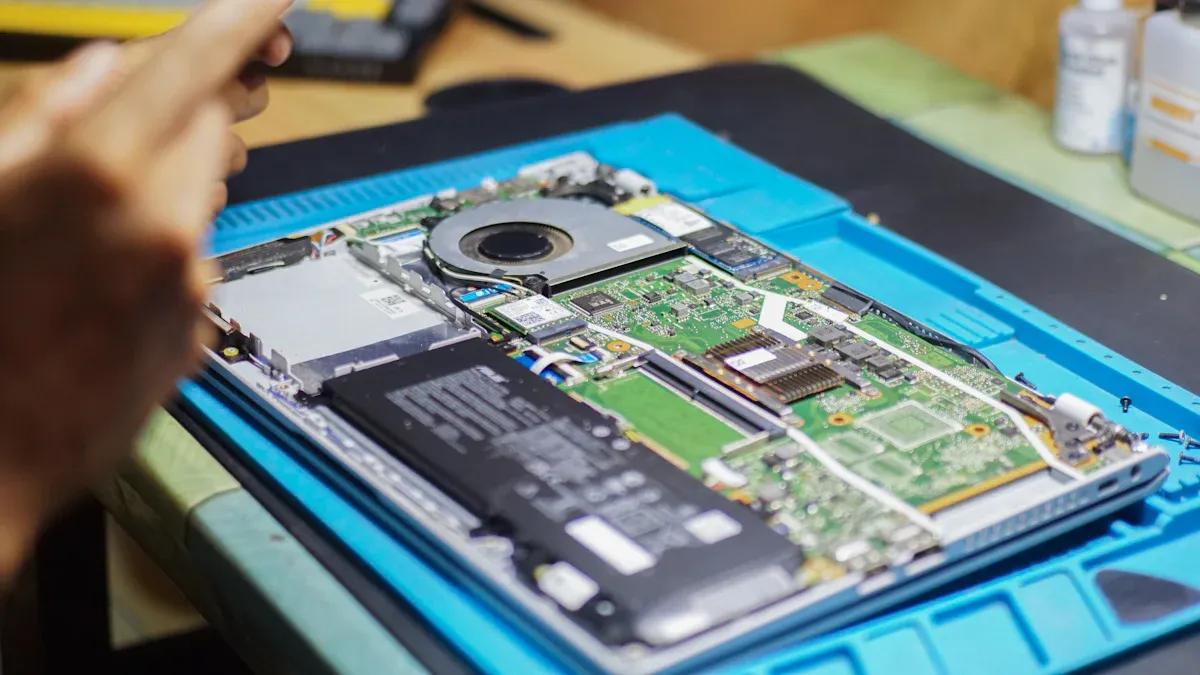
You interact with many laptop components name every day. These parts include the CPU, RAM, storage devices, motherboard, battery, and display screen. Understanding each laptop components name helps you choose the right device, solve common problems, and improve daily use.
When you learn the laptop components name, you gain the power to make smarter decisions. You can spot issues quickly and use your laptop more confidently. Simple explanations for every laptop components name will guide you through the basics.
Key Takeaways
Understanding laptop components helps you make better choices when buying or troubleshooting devices.
The CPU is the brain of your laptop, handling instructions and calculations for smooth performance.
More RAM allows your laptop to multitask better, so consider at least 8GB for everyday use.
SSDs are faster and more reliable than HDDs, making them the preferred choice for modern laptops.
Keeping your laptop's cooling system clean helps prevent overheating and extends its lifespan.
Main Components of a Laptop
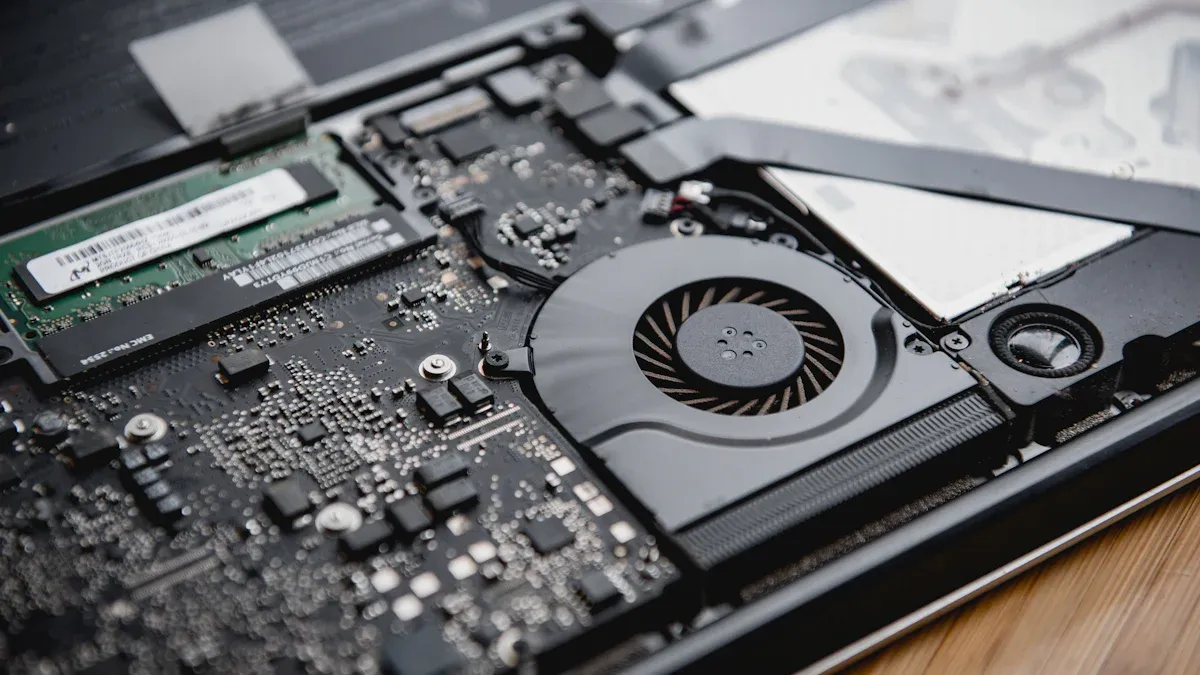
When you look inside a laptop, you find several important laptop parts that work together to make your device run smoothly. These internal parts of a laptop include the central processing unit, ram, storage devices, motherboard, power supply unit, and battery. Each part has a unique job, and understanding these main components of a laptop helps you make better choices when buying or troubleshooting.
Central Processing Unit (CPU)
The central processing unit is often called the brain of a computer. You use the cpu every time you open a program, play a game, or browse the web. The cpu handles instructions and calculations. It contains multiple cores, which allow it to process many tasks at once. Modern cpus often have dual-core or quad-core cpu designs, meaning they have two or four cores inside. Some processors have even more cores, which boost performance for demanding tasks.
Inside the cpu, you find the arithmetic logic unit, or alu, and the control unit, or cu. The alu performs math and logic operations, while the control unit directs the flow of data. The cpu also has cache memory, which stores frequently used data for quick access. More cache means faster performance. The microprocessor in your laptop is a type of cpu designed for compact devices.
Modern cpus also work closely with the gpu, which handles graphics and visual tasks. When you use a dual-core cpu, you get better multitasking. A quad-core cpu gives you even more power for gaming or video editing. Multiple cores and large cache sizes make your laptop run faster and smoother.
Random Access Memory (RAM)
Ram is another key laptop part. It stores data that your cpu needs right away. When you open a file or run a program, ram holds the information temporarily. More ram means your laptop can handle more tasks at once.
As of 2024, most mainstream laptops come with 8GB of ram. High-end models may offer 16GB or more. For basic tasks like web browsing, 4GB of ram is the minimum. If you open many browser tabs or use modern web apps, you need more ram. Modern web frameworks use a lot of memory, so even 16GB can feel tight with heavy use.
A single browser tab can use a lot of ram, so 4GB is the minimum for basic tasks.
With 16GB of ram, you still might feel limited if you open many web pages.
Complex web apps use more ram because of their design.
Ram works with the cpu and cache to keep your laptop running smoothly. The cpu uses ram to store data it needs quickly. The cache helps speed up access to this data. The more ram and cache you have, the better your laptop performs.
Storage Devices (SSD/HDD)
Storage is where your laptop keeps files, programs, and the operating system. You find two main types of storage devices in laptops: ssd and hdd. An ssd uses flash memory and has no moving parts. It offers faster speed and better reliability. An hdd uses spinning disks and is slower.
Storage Type | Speed (MB/s) | Notes |
|---|---|---|
SSD | 500–550 (SATA), >3000 (NVMe) | Uses flash memory for faster performance |
HDD | 80–160 | Limited by mechanical rotation of platters |
Ssds resist physical damage because they have no moving parts.
Ssds keep their speed even after heavy use.
Hdds can fail if dropped or bumped, which may cause data loss.
Most modern laptops use ssd storage for speed and reliability. Some budget models still use hdd storage. The cpu and ram work with storage to load and save data quickly. The cache helps the cpu access stored data faster.
Motherboard
The motherboard is the main circuit board in your laptop. It connects all the laptop parts, including the cpu, ram, storage, gpu, and input/output ports. The motherboard lets these components talk to each other and share data. You can think of the motherboard as the highway that links every part of your laptop.
The motherboard, also called the mainboard or system board, makes sure the cpu, ram, storage, and gpu work together. Without the motherboard, your laptop components could not communicate. The cache and cores in the cpu rely on the motherboard to send and receive data. The control unit and arithmetic logic unit also depend on the motherboard for instructions.
Power Supply Unit
The power supply unit changes electricity from your wall outlet into a form your laptop can use. It sends power to the motherboard, cpu, ram, storage, and other laptop parts. The power supply unit makes sure each internal part of a laptop gets the right amount of energy.
When you plug in your laptop, the power supply unit charges the battery and powers the device. The cpu, gpu, and other components need steady power to work well. The cache and cores in the cpu also depend on a stable power supply for top performance.
Battery
The battery lets you use your laptop without plugging it in. It stores energy and powers the main components of a laptop when you are on the go. Most laptops use lithium-ion or lithium-polymer batteries. These batteries are small, light, and hold a lot of energy.
Laptop Model | |
|---|---|
Model 1 | 16 hours |
Model 2 | 14.5 hours |
Model 3 | 15 hours |
Battery Type | Cycle Life (Cycles) | Safety Features |
|---|---|---|
LiFePO4 | 2,000–7,000 | Prevents oxygen release at high temperatures, inherently safer. |
Lithium-ion Polymer | 300–1,000 | Requires robust battery management systems to mitigate thermal risks. |
LiFePO4 batteries last much longer than lithium-ion polymer batteries.
LiFePO4 batteries are safer because they do not release oxygen at high temperatures.
Lithium-ion polymer batteries are lighter and fit better in slim laptops.
You can expect battery life to range from 14 to 16 hours in many modern laptops. The cpu, gpu, ram, and storage all use power from the battery. The cache and cores in the cpu also draw energy from the battery. When you know how your battery works, you can manage your laptop parts better and extend battery life.
Tip: The material used for laptop parts affects durability and style. Most laptops use plastic for affordability. Premium models use metal for strength and looks. Carbon fiber is light and strong, and you see it in some high-end laptops.
Material Type | Description | Market Position |
|---|---|---|
Plastic | Cost-effective and dominates in volume | Leading in volume due to affordability |
Metal | Premium offerings and leads in value | High value due to durability and aesthetics |
Carbon Fiber | Lightweight and durable | Gaining popularity in niche markets |
When you understand the main components of a laptop, you can choose the right device, solve problems, and use your laptop more effectively. Each laptop part plays a role in performance, reliability, and user experience.
Laptop Parts for Input and Output
Display Screen
You rely on the display screen for every visual task. The most common types include IPS, TN, and OLED panels.
IPS screens give you wide viewing angles and accurate colors, which help when you watch movies or edit photos.
TN screens cost less but show limited colors and narrow viewing angles, making them less ideal for creative work.
OLED screens offer deep contrast and vibrant colors, creating a stunning experience for gaming and entertainment.
Screen resolution and refresh rate also shape your experience. Higher refresh rates make scrolling and moving windows feel smooth. You notice less eye strain during long sessions. A sharp resolution helps you see details clearly, which boosts productivity and enjoyment.
Tip: Choose a screen with a high refresh rate and good color accuracy for the best comfort and performance.
Keyboard
The keyboard lets you type, search, and control your device. You find two main types: mechanical and membrane. The table below shows their differences:
Feature | Mechanical Keyboards | Membrane Keyboards |
|---|---|---|
Key Mechanism | Individual switches | Rubber or silicone layer |
Durability | 50–100 million presses | Wears out over time |
Typing Experience | Tactile and responsive | Feels soft or 'mushy' |
Noise Level | Louder | Quiet |
Weight | Heavier | Lightweight |
Cost | More expensive | Affordable |
Gaming Performance | No ghosting, N-Key Rollover | May ghost during gaming |
Actuation Point | Consistent before bottoming out | Needs full press to register |
Keyboard layout affects how fast and comfortably you type.
Key travel distance between 2.5-3.5mm helps your fingers move smoothly.
Actuation force of 55-65 grams prevents accidental presses.
Sculpted keycaps reduce finger strain and improve comfort.
Touchpad
The touchpad gives you control without needing an external mouse. You use gestures like pinch-to-zoom, scrolling, and swiping for quick navigation. Multi-touch support and a smooth surface make tasks easier. TrackPad ICs enable these features, helping you multitask efficiently.
Feature | Laptop Touchpad | External Mouse |
|---|---|---|
Responsiveness | Multi-touch, highly responsive | Responsive, varies by model |
Gesture Compatibility | Supports many gestures | Limited gesture support |
Portability | Built-in, ideal for travel | Needs space and setup |
Surface Compatibility | Works on most surfaces | May need mouse pad |
User Experience | Quick for simple tasks | Better for precision |
Note: Modern touchpads support gestures that make navigation and multitasking much easier, especially for remote work.
Webcam
The webcam connects you to others for remote work, online classes, and video calls. Built-in webcams simplify setup and save space. You benefit from better sound quality and higher video resolution, which improve your experience during virtual meetings. The demand for webcams has grown as more people work and learn from home.
Integrated webcams make video conferencing easy.
Enhanced features improve sound and image quality.
You stay connected with friends, family, and colleagues.
Connectivity & Cooling System
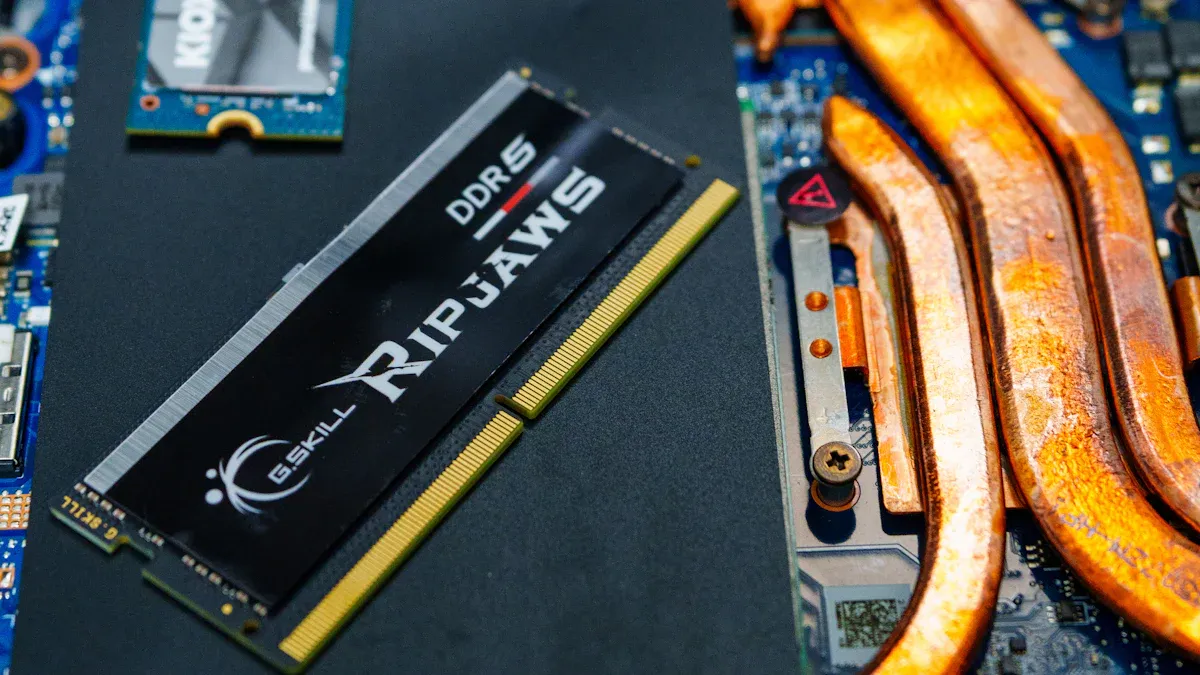
You depend on several features to connect your laptop to other devices and keep it running smoothly. Ports, wireless modules, and the cooling fan all play important roles in your daily experience.
Ports (USB, HDMI, etc.)
Ports let you plug in accessories, transfer data, and connect to displays. Each port has a unique shape and function. The table below shows the most common ports and what they support:
Port Type | Description | Supported Devices |
|---|---|---|
USB Type-A | Rectangular, supports data transfer and power delivery | Computers, mobile devices, peripherals |
USB Type-C | Oval, reversible, handles data, power, and video signals | Smartphones, monitors, laptops, accessories |
USB Type-B | Square, used for printers and some gadgets | Printers, monitors, MIDI controllers |
USB Type-B Mini | Smaller, found in portable devices | Budget gadgets, cameras |
USB Type-B Micro | Even smaller, used in mobile devices | Smartphones, tablets |
You see more laptops using USB-C and Thunderbolt ports today. These ports make it easy to connect many devices with one cable. You can use docking stations to add monitors, keyboards, and storage all at once. New USB-C docks even include smart features for better device management and faster charging. This trend helps you stay ready for new technology.
Wireless Modules (Wi-Fi, Bluetooth)
Wireless modules let you connect to the internet and other devices without cables. Wi-Fi gives you access to networks at home, school, or work. Bluetooth lets you pair with headphones, mice, and speakers. You move freely and keep your workspace tidy because you do not need wires. Fast wireless connections help you stream, download, and share files quickly.
Tip: Always keep your wireless drivers updated for the best speed and security.
Cooling Fan
The cooling fan protects your laptop from overheating. It moves hot air out and brings cool air in. Good cooling keeps the processor and graphics chip at safe temperatures. When your laptop stays cool, it runs faster and lasts longer.
Lowers CPU and GPU temperatures by 10–20°C during heavy use
Stops thermal throttling, so you get top performance
Increases the lifespan of your hardware by reducing heat stress
You should keep the fan clean and make sure air can flow freely. This simple step helps your laptop work better every day.
Laptop Components Name Quick Reference
Summary Table of Laptop Parts and Functions
You often need a quick way to check what each part inside your laptop does. This reference table helps you understand the main components and their roles. When you know these names and functions, you can solve problems faster and make smarter choices when you buy or upgrade your device.
Tip: If you ever open your laptop or read its manual, use this table to identify each part and learn how it affects performance.
Component Name | Function |
|---|---|
Central Processing Unit (CPU) | Handles instructions and calculations. Runs programs and manages tasks. |
Random Access Memory (RAM) | Stores data for quick access. Helps your device multitask smoothly. |
Storage Device (SSD/HDD) | Saves files, programs, and your operating system. |
Motherboard | Connects all parts. Allows communication between components. |
Power Supply Unit | Converts electricity. Delivers power to every internal part. |
Battery | Stores energy. Powers your device when you unplug it. |
Display Screen | Shows images, videos, and text. Lets you interact visually. |
Keyboard | Lets you type and control your device. |
Touchpad | Provides navigation and gesture controls. |
Webcam | Captures video and images. Supports video calls and online meetings. |
Ports (USB, HDMI, etc.) | Connects accessories and external devices. Transfers data and power. |
Wireless Modules (Wi-Fi, Bluetooth) | Enables wireless internet and device connections. |
Cooling Fan | Keeps internal parts cool. Prevents overheating and protects hardware. |
You can use this table as a checklist when you compare devices or troubleshoot issues. Each part works together to give you a smooth experience. The motherboard acts as the main link, making sure every component communicates and functions properly.
Remember: Learning the names and functions of these components helps you keep your laptop running well and makes upgrades easier.
Understanding the parts inside your laptop helps you make smart choices. You can fix simple problems and upgrade with confidence.
When you know how each part works, you control your technology.
Check your device and find the components you learned about.
Use this knowledge to keep your laptop running smoothly.
FAQ
What is the most important part of a laptop?
You rely on the CPU for speed and performance. The CPU processes instructions and runs your programs. Without a strong CPU, your laptop cannot handle demanding tasks or multitasking well.
How can I make my laptop run faster?
You can add more RAM or upgrade to an SSD. These changes help your device open programs quickly and switch between tasks smoothly. Keeping your system clean from dust also improves performance.
Why does my laptop get hot?
Your device gets hot when the CPU or GPU works hard. The cooling fan moves heat away from these parts. Blocked vents or dust buildup can cause overheating. Clean the vents regularly to keep your laptop cool.
How long does a laptop battery last?
Most batteries last between 2 to 5 years. Usage habits, charging cycles, and battery type affect lifespan. You can extend battery life by avoiding extreme temperatures and unplugging your device when fully charged.
Can I upgrade my laptop storage?
Many laptops let you upgrade storage. You can replace an HDD with an SSD for faster speeds. Check your device’s manual to see if upgrades are possible. Always back up your data before making changes.
See Also
A Simple Guide to Multi-Frequency Displays for Laptops
Key Insights on LTPS Displays for 2025 Users
Lenovo’s ThinkVision P Series Integrates BOE’s Oxide Technology