3 Easy Steps to Pick the Right Drawing Tablet
You want the best drawing experience, right? Start by thinking about your creative goals and how you like to work. Maybe you love digital art or you want to try something new. Picking a drawing tablet does not have to feel hard. Whether you just started or you already have skills, you can find a device that fits your style. Take a moment to consider your budget, the software you enjoy, and how much you move around with your gear.
Key Takeaways
Think about what you want to make before picking a drawing tablet. Decide which features will make drawing easier for you.
Make sure the tablet works with your favorite drawing apps. Check that it connects well with the programs you like to use.
Think about how easy it is to carry the tablet. If you travel a lot, pick a light tablet that fits in your bag.
Look at important things like screen size, how clear the screen is, and how well the pen works. These things change how good your drawings look.
Choose how much money you want to spend and look at different tablets. This helps you get a tablet you like without spending too much.
Identify Your Needs
Think about what you want to make before you choose a drawing tablet. Also, think about how you like to draw. This will help you pick a device that fits your style. It will also make drawing easier and more fun.
Artistic Goals
Ask yourself what you want from your digital drawing devices. Do you want drawing to feel smooth and natural? Or do you need pressure sensitivity for better control? Maybe you want to stop your hand from hurting or finish your art faster. Here are some common goals artists have:
Creative Goal | Description |
|---|---|
More Natural and Fluid Drawing Experience | Drawing with a stylus feels like using real art tools. This helps you be creative and makes it easy. |
Pressure Sensitivity for Creative Control | The stylus can sense how hard you press. This lets you make lines and textures like real tools. |
Reduced Physical Strain | A stylus with a good shape keeps your hand and wrist from getting tired. |
Speed and Efficiency for VFX and Complex Tasks | Tablets help you do hard tasks faster. This saves time and helps artists work better. |
Customizable Buttons and Shortcut Keys | You can set up buttons to do things fast. You do not need to use the keyboard as much. |
If you are new to drawing tablets, you might like the iPad, Wacom Intuos, or Huion Kamvas. These are simple to use and give you a good drawing experience.
Software & Apps
Think about which drawing apps you want to use. Some popular ones are:
Procreate
Clip Studio Paint
Adobe Fresco
ibisPaint
Procreate is easy to use and has strong tools. Clip Studio Paint is great for comics and painting. Adobe Fresco has brushes that act like real paint. Make sure your tablet works with the apps you like. This way, you will have the best time making digital art.
Portability
Do you want to draw at home or while you travel? If you move around a lot, you need a tablet that is easy to carry. The iPad Mini is small and light. The Wacom MovinkPad 11 is also good for artists who travel. Both let you draw anywhere you want.
Tip: Write down your most important needs before you shop. This will help you pick the right drawing tablet for your art.
Drawing Tablet Features
When you look for a drawing tablet, you want to know what makes each one special. The right features can make your drawing experience smooth and fun. Let’s break down the most important things you should check before you buy.
Screen Size
Screen size changes how you draw and where you can use your tablet. A bigger screen gives you more space to create detailed digital art. You can see your whole project without zooming in and out all the time. If you pick a 13-inch display, you get a large canvas that feels great for big projects. Smaller screens, like 11 inches, are easy to carry. You can sketch on the bus, at a café, or anywhere you want.
Large screens (13 inches or more) give you room for detail and help you see your work better.
Small screens (11 inches or less) are light and fit in your bag. You can draw anywhere, which helps you stay creative on the go.
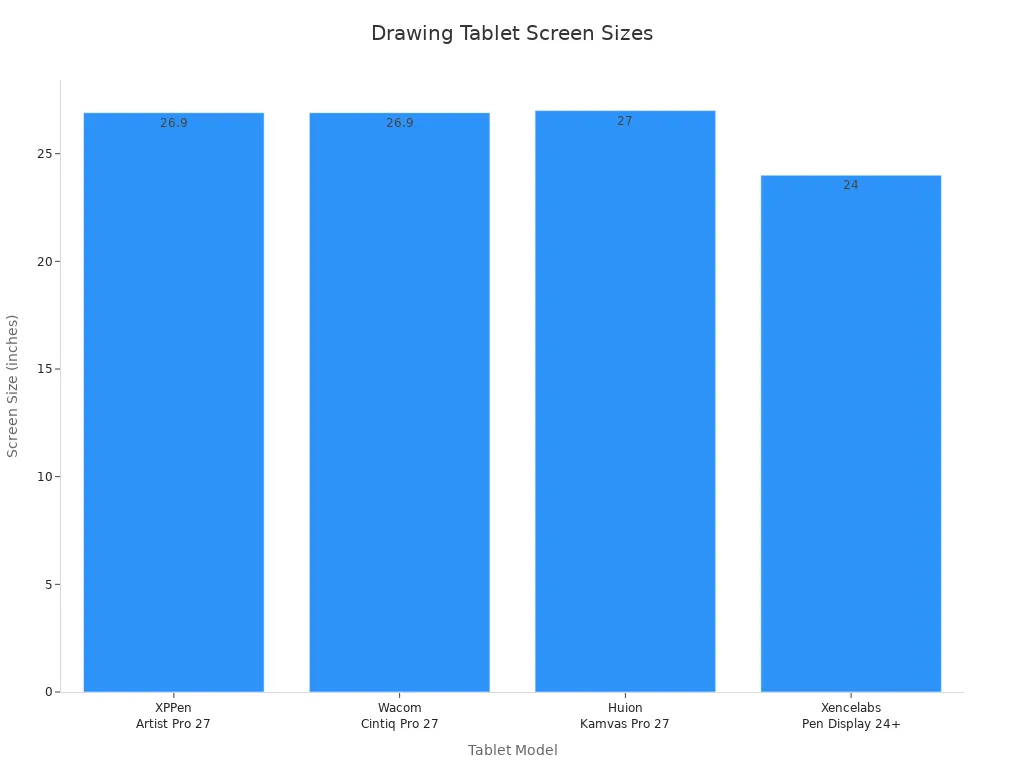
Here’s a quick look at some popular screen sizes:
Tablet Model | Screen Size | Resolution | Refresh Rate | Color Coverage |
|---|---|---|---|---|
XPPen Artist Pro 27 (Gen 2) | 26.9 inches | 4K | 120Hz | 99% sRGB, 99% Adobe RGB, 97% DCI-P3 |
Wacom Cintiq Pro 27 | 26.9 inches | 4K | 120Hz | 99% Adobe RGB, 98% DCI-P3 |
Huion Kamvas Pro 27 | 27 inches | 4K | 60Hz | 99% sRGB, 98% Adobe RGB, 97% DCI-P3 |
Xencelabs Pen Display 24+ | 24 inches | 4K | 60Hz | 1.07 billion colors |
Tip: If you have a small desk or travel a lot, a compact drawing tablet will fit your lifestyle better.
Resolution
Resolution tells you how sharp and clear your screen looks. A higher resolution means you see more details in your art. Most top tablets offer 4K displays, which make colors pop and lines look crisp. If you want your drawing performance to shine, pick a tablet with a high resolution. This helps you spot tiny mistakes and add fine details.
Pen Sensitivity
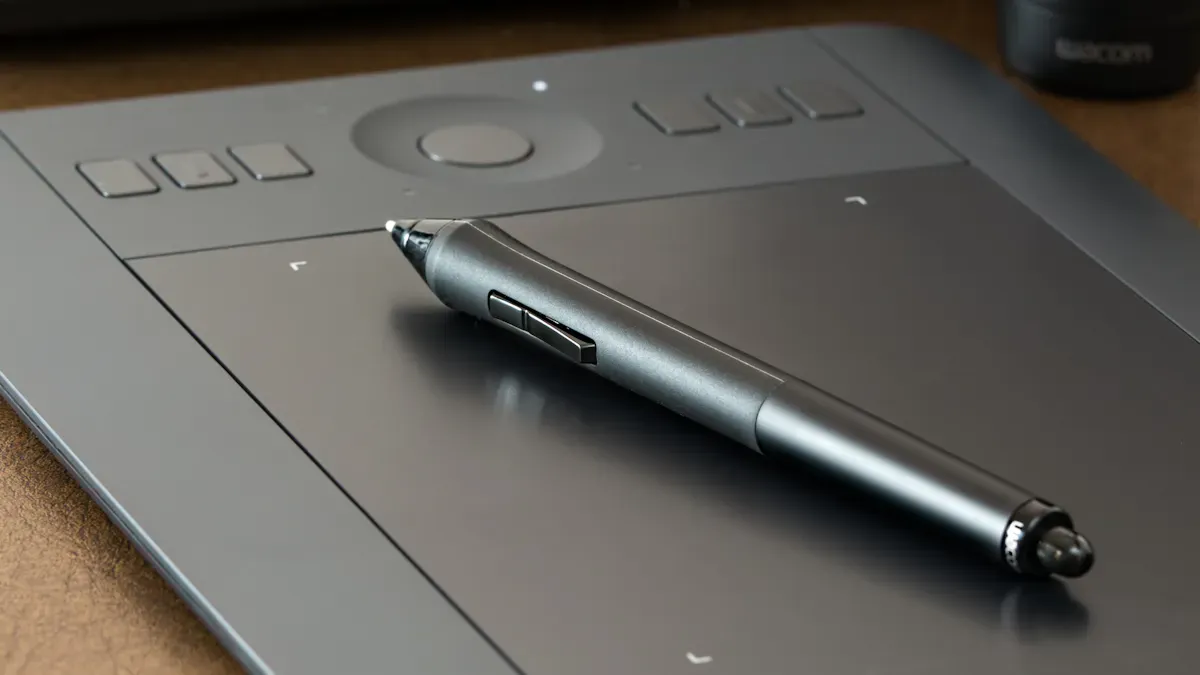
Pen sensitivity is a big deal for artists. It means how well your tablet can sense the pressure and angle of your stylus. Good stylus detection lets you make lines that change thickness and darkness, just like real pencils or brushes.
Higher pressure sensitivity gives you more control over your lines and shading.
You can make soft, light strokes or bold, dark lines by pressing harder or softer.
Most pro tablets have 8,192 levels of pressure sensitivity. This makes your digital art feel natural and expressive.
If your tablet has low pressure sensitivity, your lines might look flat and boring.
Included Pen | Features |
|---|---|
Wacom Pro Pen 3 | 8,192 levels of pressure sensitivity, three customizable buttons, adjustable grip and weight |
Note: If you want your drawing experience to feel like using real art tools, look for high stylus detection and pressure sensitivity.
Battery Life
You don’t want your drawing tablet to die in the middle of a project. Long battery life means you can draw for hours without stopping. The XPPen Magic Drawing Pad stands out with up to 13 hours of use. It also charges fast and can even charge your phone if you need it. If you travel or draw outside, battery life matters a lot.
OS Compatibility
You need your drawing tablet to work with your favorite computer or device. Most leading tablets support Windows, MacOS, and even Linux. Wacom tablets are famous for working with all three. If you use your tablet for business or need special software, check if your tablet supports the right system.
Wacom tablets work with Linux, Windows, and MacOS.
Windows is best for business and people who want a laptop replacement.
MacOS is great for creative work.
Linux is becoming more popular for professionals.
Tip: Always check if your drawing tablet supports the apps and systems you use most.
Which Drawing Tablet Should You Choose?
You have many choices, but some tablets stand out for different reasons:
Key Features | Price Range | |
|---|---|---|
iPad Air (M2) + Apple Pencil | Power and portability, perfect for creative work anywhere | Mid to High |
Wacom Cintiq Pro | Top quality, large screen, best for serious artists | High |
Huion Kamvas Pro | Great value, bright display, pro-level features | Mid |
If you want versatility, the iPad is a smart pick. For the best quality, try the Wacom Cintiq Pro. If you want value and pro features, the Huion Kamvas Pro is a strong choice.
Remember: The best drawing tablet is the one that fits your needs, your space, and your budget.
Budget & Options
You want a drawing tablet that matches your money and art style. Let’s see how you can get good features without spending too much.
Price Range
Drawing tablets come in many sizes and prices. You do not need to spend a lot to start digital art. Here is what you might pay:
Type | Price Range (USD) |
|---|---|
Entry-Level | $39.95 - $129.95 |
Mid-Range | $249.95 - $499.95 |
Professional | $249.95 - $499.95 |
Entry-level tablets are great for people who are just starting. Mid-range tablets have more features and work better. Professional tablets give you the best drawing, but they cost more. Think about how much you want to spend before you shop.
Tip: Make a budget before you look for a tablet. This helps you not spend too much and keeps you focused.
Must-Have Features
Not all drawing tablets have the same things. You should make sure you get what you need most. Here are some important things to look for:
Good pen sensitivity for smooth lines and shading
A screen size that fits your workspace
Long battery life if you want to draw on the go
Compatibility with your favorite apps and devices
If you want a standalone drawing tablet, you do not need a computer. The Samsung Galaxy Tab S6 Lite and Apple iPad (9th gen) are good choices. These let you draw anywhere you want.
Note: Pick the features you use the most. You do not need every fancy tool to make cool art.
Compare Models
There are many drawing tablets to choose from. Some cost less but still work well. Others have more features but are more expensive. Look at this table to see how popular tablets compare:
Tablet Model | Price Positioning | Key Features Summary | Pros Related to Price/Value | Cons Related to Price/Value |
|---|---|---|---|---|
Huion Kamvas Pro 24 (4K) | Cost-effective for pros | 23.8" 4K display, 8,192 pressure levels, tilt control, customizable dial | More affordable than some competitors | Requires computer connection, lacks some advanced features |
Huion Inspiroy H640P | Budget-friendly | Compact, battery-free stylus with 8,192 pressure levels, 6.3 x 3.9" active area | Affordable, solid performance for beginners | Limited drawing area, no tilt support |
XP-Pen Deco Pro (Small/Med) | Low price | Battery-free pen with 8,192 pressure levels, tilt support, ergonomic design | Great drawing experience at low price | Some driver and durability issues |
Samsung Galaxy Tab S6 Lite | Budget-friendly tablet | 10.4" display, Android OS, includes S Pen, versatile for casual and budding artists | Affordable price, long battery life | Performance limitations, display tech not upgraded |
Wacom Cintiq Pro 24 | Premium price | 24" 4K UHD, 8,192 pressure levels, 99% Adobe RGB color accuracy, customizable keys | Exceptional build and display quality | High price, requires substantial workspace |
iPad Pro (M4) + Apple Pencil | High cost | Ultra Retina XDR OLED, advanced Apple Pencil features, iPadOS ecosystem | Highly portable, seamless Apple ecosystem | Higher cost, limited to latest iPad Pro models |
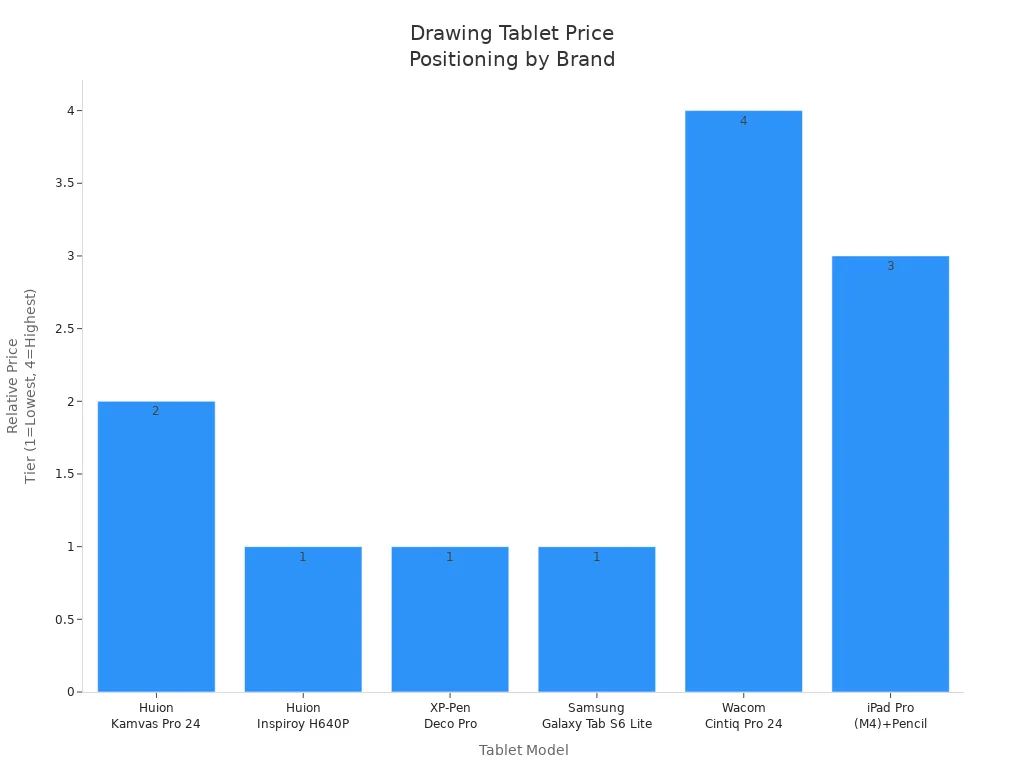
If you want a cheap tablet, try the Huion Inspiroy H640P or XP-Pen Deco Pro. These give you a good drawing experience for less money. If you want a standalone tablet, the Samsung Galaxy Tab S6 Lite and Apple iPad (9th gen) are smart for students and beginners.
Reviews & Feedback
You do not have to guess which tablet is best for you. User reviews and expert feedback can help you see what is good and what is not. Here is what people say about some popular tablets:
Tablet Model | Pros | Cons |
|---|---|---|
Wacom Cintiq 16 | Affordable, Extremely sturdy | Lower resolution and color scale |
XP-PEN Artist 22 | Excellent battery life, Powerful processor | Large and heavy, Pen sold separately |
GAOMON PD1161 | Slim size, Easy to carry | Difficult to setup, No USB-C port |
Wacom One | Simple and inexpensive | Doesn’t come with a stand, Quite pricey |
Wacom Intuos Pro PTH860 | Leading drawing tablet for professionals | N/A |
You should read reviews before you buy a tablet. Look for comments about how it draws, battery life, and how easy it is to use. Make a list of your favorite models. Try to test them in a store if you can.
Tip: Reviews from other artists can show you things you might miss. They can help you avoid problems and pick the best tablet for you.
You have lots of choices, but you do not need to feel confused. Set your budget, pick your must-have features, compare models, and check reviews. You will find a drawing tablet that helps your art stand out.
Choose the Best Drawing Tablet
Final Decision
You have made it through the three easy steps. Now it is time to pick the best drawing tablet for your needs. Think about what matters most to you. If you draw for fun, you might want a simple drawing tablet that gives you good value. If you work as a professional, you need a model with strong features and a smooth drawing experience.
Here are some things you should check before you decide:
Pressure sensitivity and pen responsiveness help you make art that feels real.
Make sure your drawing tablet works with your favorite software.
Look for a tablet with a sharp display and enough active area for your style.
Battery life and Bluetooth support matter if you draw on the go.
Shortcut keys and a comfortable stylus can make your drawing experience easier.
Think about the weight and size if you want to carry your tablet.
Good after-sales service and driver stability can save you trouble later.
You want a drawing tablet that fits your creative goals and feels right in your hands. Trust your own taste and needs. The best drawing tablet is the one that helps you enjoy digital art every day.
Try Before You Buy
If you can, visit a store and try out different tablets. Hold the stylus and see how it feels. Test the screen and check how smooth the lines look. Some stores let you try drawing on display models. This helps you see if the tablet matches your drawing style.
Tip: Bring a list of your top choices. Try each one and see which gives you the best drawing experience.
You can also watch video reviews or ask friends who use drawing tablets. Real feedback helps you avoid surprises. When you test before you buy, you feel more confident and excited to start your digital art journey.
You can pick the right drawing tablet by following three easy steps. When you focus on your needs, check features, and compare options, you make a smart choice.
The guide gives you clear details about what matters, like pressure sensitivity and software compatibility.
You feel more confident because you know what to look for.
You get a drawing experience that fits your style.
Trust yourself. Make a shortlist and try out tablets if you can. Enjoy your creative journey!
FAQ
What is the difference between a drawing tablet and a regular tablet?
A drawing tablet is made for art. It comes with a stylus and special features like pressure sensitivity. A regular tablet is for general use. You can draw on it, but it may not feel as natural.
Do I need a computer to use a drawing tablet?
Some drawing tablets need a computer. Others, like the iPad or Samsung Galaxy Tab, work on their own. Check the product details before you buy.
How do I clean my drawing tablet screen?
Use a soft, dry microfiber cloth. Gently wipe the screen. Do not use harsh cleaners or too much water. This keeps your tablet safe.
Tip: Clean your stylus tip too. This helps your screen stay scratch-free.
Can I use any stylus with my drawing tablet?
Most tablets need a specific stylus. The stylus and tablet must match for best results. Check the brand’s website for compatible pens.
What should I do if my tablet stops working?
Restart your tablet first. Update the drivers or software. If it still does not work, contact customer support. They can help you fix the problem.
See Also
Essential Advice for Improving Writing and Drawing on Digital Screens
Guidelines to Select the Ideal Gaming Monitor for You
Step-by-Step Instructions for Selecting Your Ideal Monitor
Seven Key Recommendations for Choosing an 8K Monitor in 2025