How to use laptop as monitor

You might wonder if you can use laptop as a monitor for another device. Most laptops don’t have HDMI input, so plugging in a cable won’t work. Many people think third-party apps are always needed, but built-in Windows features can help. Here are some ways you can try:
Method | Description |
|---|---|
Miracast | Wireless display between Windows devices. |
SpaceDesk | Extends displays across Windows laptops. |
HDMI Capture Card | Hardware for video input. |
Tip: Display problems like flickering or blurry images can happen if settings don’t match.
Key Takeaways
Most laptops only have HDMI output, not input. Check your laptop's specifications before trying to connect it directly to another device.
Use Windows' built-in feature 'Projecting to this PC' to wirelessly turn your laptop into a monitor for another Windows device.
Third-party apps like TeamViewer and Deskreen can help share your screen wirelessly, offering flexibility without extra cables.
Ensure both devices are on the same Wi-Fi network for wireless display features to work effectively.
Keep your laptop's software updated and check your settings to troubleshoot common display issues.
How to Use Laptop as Monitor
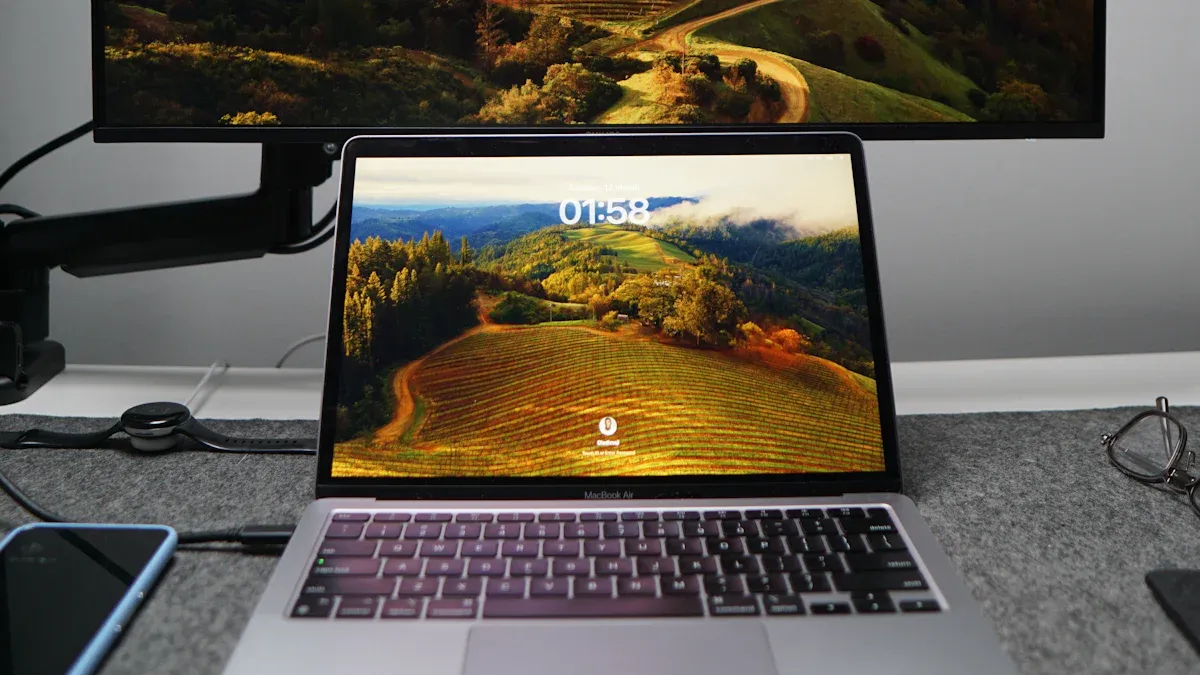
HDMI Input Limitations
You might think you can just connect two devices with an HDMI cable and use laptop as a monitor. Most laptops do not work this way. The reason is simple: HDMI ports on laptops usually send video out, not in. This means your laptop cannot receive video from another device through HDMI.
Here’s a quick look at how cable directionality works:
Cable Type | Directionality |
|---|---|
DisplayPort to HDMI | Unidirectional (DP to HDMI only) |
HDMI to DisplayPort | Not functional (reverse direction) |
If you check your laptop, you will likely find only HDMI output. Very few laptops have HDMI input. If you want to use laptop as a monitor with a cable, you need to confirm your device supports HDMI input. Most people will need to try other methods.
Note: Don’t get frustrated if your HDMI cable does not work. This is a common issue for many users.
Windows Display Features
Windows offers a handy feature called "Projecting to this PC." You can use this to turn your laptop into a wireless display for another Windows device. Here’s how you set it up:
Open the Start menu and go to Settings.
Select System, then choose Projecting to this PC.
If you do not see the option, add the 'Wireless Display' feature:
Click Optional features.
Select View features and search for 'wireless display.'
Check Wireless Display, then click Next and Install.
Once installed, go back to Projecting to this PC to adjust your preferences.
On the laptop you want to use as a monitor, search for "Wireless Display" in the taskbar and open the app.
You can also activate media streaming and Miracast if your devices support it:
Type 'Streaming' in the search bar and select 'Media Streaming Options.'
Enable Media Streaming if it is not already active.
Make sure your devices have access.
Update your Wi-Fi driver if you run into problems.
Check if your laptop supports Miracast by going to Devices and selecting Projector.
Add a wireless video connection.
Choose how you want to display the content (Duplicate, Extend, etc.).
Disconnect when you finish.
Tip: The "Projecting to this PC" feature works best with Windows 10 or Windows 11.
Network and Setup Requirements
Wireless display features need the right network setup. Before you start, make sure you meet these requirements:
Your laptop must have Wi-Fi capability.
Both devices need to support Miracast.
Connect both the laptop and the device you want to project from to the same Wi-Fi network.
If you follow these steps, you can use laptop as a monitor without extra cables or complicated hardware.
Reminder: If your devices are not on the same network, the connection will not work.
Software and Hardware Solutions

Third-Party Screen Sharing Apps
You can use third-party screen sharing apps to turn your laptop into a monitor. These apps let you share your screen wirelessly, which means you don’t need extra cables. Some of the most popular options include TeamViewer and Deskreen. TeamViewer gives you remote screen sharing and works well for personal use. Deskreen lets you use any device with a web browser as a second screen. You can share your whole screen or just one app window.
Application | Features |
|---|---|
TeamViewer | Remote screen sharing, free for personal use, customizable add-ons |
Deskreen | Turns any device with a browser into a secondary screen, shares full or partial screen |
Latency and image quality matter when you use these apps. Here’s a quick comparison:
Application | Latency | Image Quality |
|---|---|---|
CoScreen | Ultra-low latency | Crisp resolution for coding |
Low latency | High-quality video and audio | |
MirrorGo | Issues with crashes | Variable quality |
Mirroring360 | Connection problems | Variable quality |
Tip: If you want smooth video or gaming, pick an app with low latency and high image quality.
HDMI Video Capture Devices
HDMI video capture devices let you use laptop as a monitor by connecting an HDMI source to your laptop’s USB port. You plug the HDMI cable from your device into the capture card, then connect the card to your laptop. Prices range from budget-friendly to professional:
Device Description | Price |
|---|---|
Video Capture Cards, 4K 1080P 60FPS HDMI Capture Card USB 3.0 | |
Professional HDMI to USB 3.0 HD Video External Capture Card | $295.00 |
HDMI to USB/USB C Video Capture Card 1080P for Nintendo Switch Gaming Live Streaming | $19.99 |
Check your laptop’s specs before buying a capture card. Here’s what you need:
Component | Requirement |
|---|---|
CPU | PC i5-3400 or above; NB i7-3537U 2.0GHZ or above |
Graphics Card | PC NVIDIA GT630 or above; NC NVIDIA GT735M or above |
RAM | 4G RAM |
Compatible OS | Windows, Linux, Android, macOS |
Compatible Devices | PS5 & Xbox Series X (and older models) |
Note: Make sure your laptop meets these requirements for the best results.
USB Display Adapters
USB display adapters offer another way to extend your display. You can plug a USB-to-HDMI adapter into your laptop to connect to an external monitor or HDTV. Some adapters split or extend content to multiple screens, which helps with presentations.
USB display adapters connect laptops to HD display sources via HDMI inputs.
USB-to-HDMI adapters provide instant HDMI output, turning an HDTV into a monitor.
USB-C to Dual HDMI Adapters split or extend content to multiple displays.
Keep in mind, some adapters only support 1080p resolution. Dedicated display splitters can reach up to 4K, but users sometimes report low resolution issues with certain USB-C adapters.
Reminder: Always check the resolution support before you buy a USB display adapter.
Troubleshooting and Compatibility
Connection Issues
You might run into connection problems when you try to use your laptop as a monitor. Here are some quick steps you can follow to fix common issues:
Perform a hard reset. Turn off your laptop, unplug it, remove all accessories, hold the power button for 15-20 seconds, then reconnect and turn it on.
Check all cables. Make sure every cable is plugged in tightly. Try swapping cables if you have extras.
Adjust your monitor settings. Pick the right input source and tweak brightness or contrast if needed.
Test with another device. Connect your monitor to a different computer to see if the problem is with your laptop or the monitor.
Update your graphics drivers and BIOS. Keeping your drivers current can solve many display issues.
Update your operating system. New updates often fix bugs that cause connection problems.
You can also try these quick tips:
Disconnect all accessories to avoid conflicts.
Use different video output ports if your laptop has more than one.
Switch the default display adapter if you have more than one installed.
Performance Problems
Sometimes, you may notice your laptop slows down or the screen flickers when you use it as a monitor. Here are some things to watch for:
High memory usage can make your laptop respond slowly, even if you have 16GB of RAM.
Video calls or streaming might lag. This can look like a network problem, but it often means your laptop is running out of resources.
Reducing your RAM will make things worse. If you drop from 16GB to 8GB, you’ll see more delays.
Screen flickering can happen if your display drivers don’t match, if cables are loose, or if hardware is faulty.
Overheating is common when you run multiple monitors. Your graphics card and CPU work harder and get hotter.
You might see your laptop slow down if you push it too hard with extra displays.
Before you use laptop as a monitor, check your display settings and graphics card. If your laptop sleeps when you close the lid, you may need to change BIOS settings or use an external keyboard and mouse.
Security Tips
When you use third-party apps for screen sharing, you need to protect your privacy. Here’s a table with some important tips:
Privacy Measure | Description |
|---|---|
Identify Permissions | Check what permissions each app asks for before you install it. |
Use Strong Passwords | Set strong, unique passwords for all your devices. |
Disable Bluetooth/Wi-Fi | Turn off these features in public to avoid unwanted connections. |
Update your apps and system to patch security holes. |
You should always use strong passwords and turn off Bluetooth and Wi-Fi when you don’t need them, especially in public places. Keep your software up to date so you stay safe from new threats.
You have several ways to use your laptop as a monitor. Each method gives you more viewing space and can help you work more comfortably, but it may use more power or stress your graphics card. Choose the setup that matches your workspace:
Setup Type | Description |
|---|---|
Classic | Simple and practical for productivity |
Dual Monitor | Great for multitasking and managing tasks |
Check your ports and keep your screens at eye level. Keep a safe distance from your monitor and enjoy your new setup! 😊
FAQ
Can I use my MacBook as a monitor for my PC?
You can’t use your MacBook as a monitor with a simple HDMI cable. Try third-party apps like Deskreen or use AirPlay if both devices support it. Most MacBooks don’t have video input ports.
Why doesn’t my HDMI cable work between two laptops?
Most laptops only send video out through HDMI. You need a laptop with HDMI input, which is rare. Try wireless display features or a capture card instead.
Is there any lag when using wireless display apps?
You might notice a slight delay, especially with video or games. For smoother performance, use a wired connection or choose apps known for low latency.
Do I need special software to use my laptop as a second monitor?
Not always! Windows has built-in features like “Projecting to this PC.” For more options or cross-platform setups, you can try apps like TeamViewer or SpaceDesk.
Is it safe to use third-party screen sharing apps?
Most popular apps are safe if you download them from official sites. Always check permissions, use strong passwords, and keep your software updated for better security.
See Also
Understanding Multi-Frequency Displays For Daily Laptop Use
Essential Tips For Selecting The Perfect Monitor
Effective Ways To Safeguard Your Eyes From Screens