How to Repurpose Your Old Tablet as a SmartHomeDisplay in 2026
You might have an old tablet in a drawer. Instead of leaving it unused, you can make it a smarthomedisplay. This way saves money and stops waste. You still get cool features like a real display. Many people think using a tablet is more flexible and personal. You do not need special skills or tools. You only need some time and interest. Why not try this idea?
Key Takeaways
Look at your old tablet’s specs before you begin. Make sure it uses Android 10 or newer. It should have at least 2 GB of RAM. The screen should be 7 inches or bigger.
Wipe and clean your tablet to make it work well. Save important files first. Do a factory reset. Update the software so it works better.
Pick a smart home dashboard app that fits your needs. Good choices are Home Assistant and Google Home. These apps help you control your devices easily.
Put your tablet on the wall in a safe way. Use small brackets to keep it neat. Make sure it is close to a power outlet for charging.
Using your tablet again is good for the planet. It cuts down on electronic waste. It also saves resources and gives you a smart home display.
Check Your Old Tablet
Minimum Specs Needed
Before you start, you should look at your tablet’s basic features. You want your device to run smoothly as a smart home display. Most tablets from the last five years work well for this purpose. If you have an existing android tablet, check these specs:
Feature | Minimum Requirement |
|---|---|
Operating System | Android 10 or newer |
RAM | 2 GB or more |
Storage | 16 GB or more |
Screen Size | 7 inches or larger |
You do not need the latest hardware. You just need enough power to run dashboard apps and keep the screen bright. If your tablet meets these specs, you are ready for the next step.
Tip: If your tablet feels slow, try removing unused apps. A clean device runs faster and saves battery.
Battery and Performance
Battery health matters a lot when you use your tablet as a smart home display. Over time, lithium-ion batteries lose about 20% of their capacity after 500 charge cycles. If your tablet’s battery drains quickly, you may need to charge it more often. This can make your setup less reliable.
A healthy battery keeps your display running longer.
Frequent charging can wear out the battery faster.
You can extend battery life by lowering screen brightness and turning off unused features.
If your android tablet stays plugged in all day, you should still check the battery. Some tablets let you set charging limits to protect battery health. You want your display to last for years, so keep an eye on performance and battery settings.
Prepare for Smarthomedisplay Use
Reset and Clean
You want your old tablet to feel fresh before you turn it into a smarthomedisplay. Start by backing up any photos or files you still need. After that, do a factory reset. This step wipes out old apps and personal data. You get a clean slate, which helps your tablet run faster.
Here’s a quick checklist for resetting and cleaning:
Backup important files
Go to Settings > System > Reset options > Erase all data
Confirm and wait for the tablet to restart
Wipe the screen and case with a soft cloth
Clean charging port and buttons with a dry brush
Tip: A clean tablet looks better on your wall or desk. Dust and fingerprints can make your smarthomedisplay less appealing.
Update Software and Security
After you reset your tablet, check for software updates. New updates fix bugs and keep your device safe. Go to Settings and look for “System Update.” Install any updates you find. Updated software helps your smarthomedisplay work smoothly with smart home apps.
You should also review security settings. Set a strong password or PIN. Turn on device encryption if available. These steps protect your tablet from unwanted access.
Want a simple look? Try a minimalist launcher. These apps replace your home screen with a clean dashboard. You see only what you need, like smart home controls and weather. Some popular launchers in 2026 include “SimpleHome” and “DashLite.” They make your smarthomedisplay easy to use and nice to look at.
Note: Minimalist launchers use less memory and battery. Your tablet stays fast and reliable.
Set Up Smart Home Control Panel Apps
Best Dashboard Apps 2026
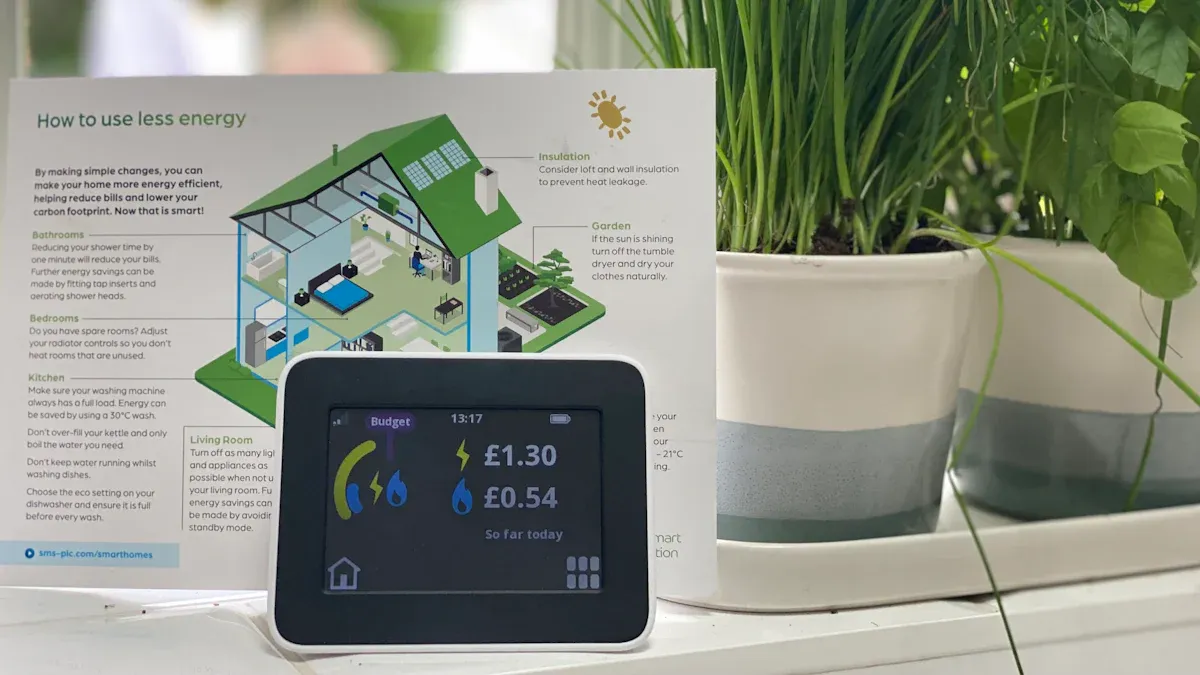
You want your tablet to work as a smart home control panel. In 2026, there are many dashboard apps you can use. Some apps work better with android tablets. Other apps let you change more things. You can pick the app that fits your smart home.
Here are some dashboard apps you should try:
Home Assistant: This app is a hub for all your devices. You can change the ui and control lights, locks, and sensors from one place.
Google Home: If you have android, Google Home works with many smart home devices. You can control devices and see updates on your tablet.
THIRDREALITY Panel: This app uses different ways to connect. You can use Zigbee or Matter, depending on your smart home. The app helps you save power when you control devices.
SimpleHome Panel: This app lets you change your home screen. You can move widgets to make your own smart home dashboard.
You can look at the table below to compare features:
Feature | Description |
|---|---|
Interface Builder | No-code, web-based, AI-powered interface builder for designing IoT displays. |
Dashboard Creation | Drag-and-drop canvas with ready-to-deploy templates for quick dashboard creation. |
Integration | Integrates live data from various sources like weather APIs, crypto trackers, and more. |
Device Management | Built-in device management for deploying and monitoring displays remotely. |
Customization | LLM-powered tools for generating custom images and UI layouts on demand. |
These features help you make your panel look and work how you want. You can change things to match your style.
Ecosystem Compatibility
Your smart home control panel needs to work with your smart home system. Some apps work with popular brands. Other apps use open standards like Zigbee or Matter. You can choose what works with your devices.
THIRDREALITY uses more than one way to connect. You can use Zigbee for saving power or Matter for better connections.
Google Home works well with android tablets and many smart home brands.
Home Assistant works with almost every device. You can control everything from one place.
Your panel should connect with lights, thermostats, and cameras. This makes your tablet a hub for your smart home.
Tip: Look at your device list before you pick an app. Some apps work better with certain brands or ways to connect.
Install and Configure
You can make your tablet a smart home control panel in a few steps. You do not need special skills. You just need your android tablet and Wi-Fi.
Step-by-step guide:
Open the Play Store on your android tablet.
Search for the smart home dashboard app you want.
Tap “Install” and wait for the app to download.
Open the app and sign in with your smart home account.
Follow the setup steps to add your devices. You can use drag-and-drop tools to change your home screen.
Change the panel layout. You can add widgets, pick colors, and set up quick buttons.
Test your smart home control panel. Try turning on a light or checking the weather.
You can change your panel to make it special. Many apps let you make a true control panel with custom images and layouts. You can control all your devices and watch everything from one place.
Note: If you want more options, try advanced settings. You can set up automation, voice commands, and remote access.
Your android smart home control panels give you what you need. You can use your tablet as a display, a control panel, or a second monitor. You get a smart home dashboard that works for you.
Mounting and Power Solutions
Wall Mount Options
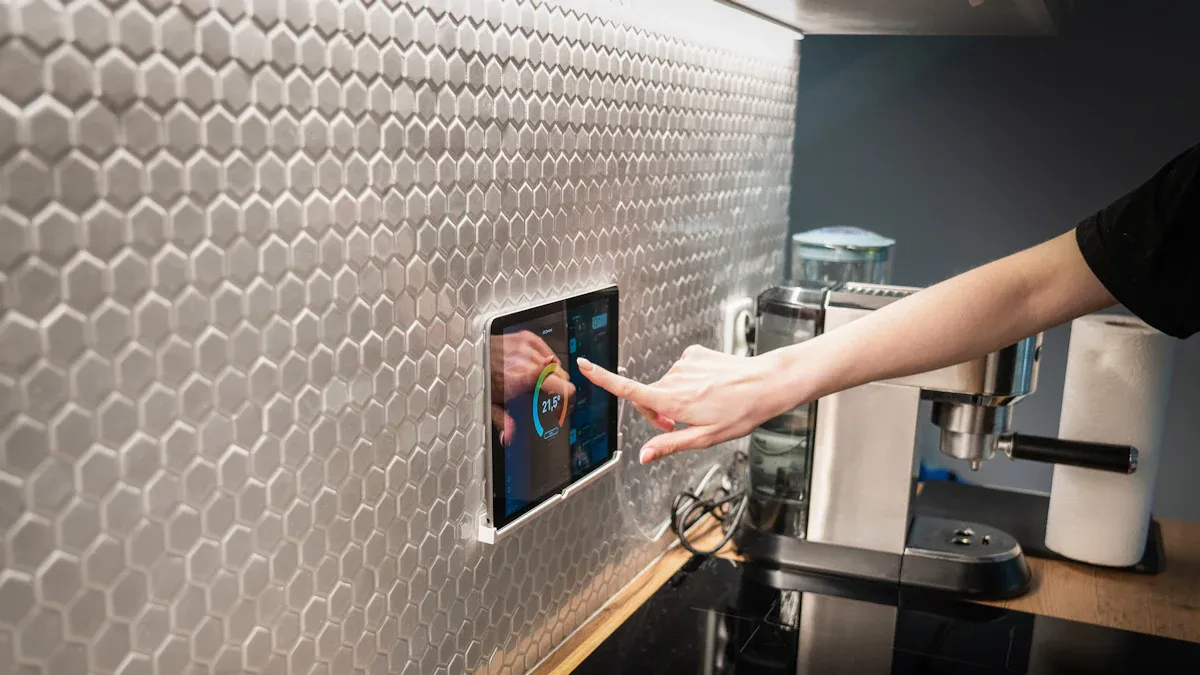
You want your smart home display to look neat and stay safe. Wall mounting your tablet is a great way to do this. Many people use low-profile brackets or special mounts. These keep your device close to the wall and out of the way. Here are some popular options in 2026:
Product Name | Description |
|---|---|
Works with Amazon Fire, Samsung Galaxy, Lenovo Tab, Apple iPad, and more. | |
Tablet Wall Mount for Amazon Fire | Easy to install and comes with simple packaging. |
Tablet Flush Mount | Fits most major brands and sits flat against the wall. |
Tablet Wall Mount for Samsung Galaxy | Simple instructions and quick setup. |
You can pick a mount that matches your tablet and your room. Most mounts work with android devices, so you have lots of choices.
Tip: Place your tablet near a power outlet. This makes charging easier and keeps cords tidy.
Continuous Power Tips
Your smart home display needs power all day. You can use the charger that came with your android tablet. Some people use right-angle charging cables. These cables fit better behind the mount and look cleaner.
Use a surge protector to keep your device safe from power spikes.
Hide cables with cord covers or run them inside the wall for a clean look.
Set your tablet’s screen to turn off at night. This saves energy and helps the battery last longer.
If your tablet stays plugged in, check the battery settings. Some android tablets let you set a charging limit. This helps keep the battery healthy.
Battery and Security
You want your display to last and stay safe. Check the battery health every few months. If you see the battery swelling or the tablet gets hot, unplug it and get help.
For security, set a strong PIN or password. Turn on device encryption if your android tablet supports it. You can also set up a guest mode. This keeps your personal info safe if someone else uses the display.
Note: Update your tablet’s software often. This keeps your smart home display safe from new threats.
Creative Uses for Old Tablets
Family Calendar and Schedules
You can turn your old tablet into a family calendar hub. Place your smarthomedisplay in the kitchen or living room. Everyone can see the schedule at a glance. You get a clear view of appointments, chores, and reminders. Many android apps let you sync calendars and to-do lists. You can add events from your phone and see them pop up on the tablet.
Here’s a quick look at what you get:
Feature | Description |
|---|---|
View calendars, to-do lists, and family notes easily. | |
Voice Control | Use Alexa or Google Assistant for hands-free reminders and timers. |
Convenience in Living Spaces | Keep everyone organized in busy areas like kitchens and living rooms. |
You can also use a free mobile app to update events when you’re out. A 15" HD touchscreen makes everything easy to read. Your family stays on track, and you never miss a birthday or soccer game.
Second Monitor and More
Your android tablet can work as a second monitor for your laptop or desktop. This setup helps with homework, gaming, or work projects. You can drag windows, watch videos, or keep chat apps open. Some android apps let you mirror your screen or extend your workspace. You get more room to work and play.
You can also use your smarthomedisplay for quick notes, recipes, or weather updates. Place it on your desk or mount it on the wall. You always have helpful info nearby.
Tip: Try using split-screen mode on your android tablet. You can check your calendar while watching a video or reading the news.
Automation and Voice Assistants
In 2026, android tablets come with smart AI assistants built in. You can ask your tablet to set reminders, control lights, or play music. The tablet learns your habits and helps with daily tasks. You get voice control, gesture commands, and even predictive suggestions.
Your smarthomedisplay can run routines for morning, bedtime, or leaving the house. You just say a command, and your home responds. This makes life easier and saves time.
Sustainability and Reducing Electronic Waste
Repurposing your old tablet helps the planet. You keep devices out of landfills and cut down on waste. You save energy by not buying new electronics. Recycling old android tablets means fewer harmful chemicals in the environment. You help conserve natural resources and lower your carbon footprint.
Using your tablet as a smarthomedisplay is good for your home and the Earth. You make a smart choice for your family and future.
You just learned how to turn your old tablet into a smart home display. You can pick apps, try different mounts, and set up your control panel the way you like. Many people say tablets give you more choices and better touch controls than regular smart displays. Here are some tips from users:
Hide cables for a clean look.
Raise the screen for comfort.
Use automatic charging to save time.
Try using your tablet as a second monitor or family calendar.
Share your setup or ideas in the comments. I’d love to hear what you create!
FAQ
Can I use an iPad instead of an Android tablet?
Yes, you can use an iPad. Just make sure it runs iOS 14 or newer. Many smart home apps work on both platforms. You may find some features look different, but the main steps stay the same.
What if my tablet is very old or slow?
If your tablet feels slow, try a factory reset and remove extra apps. Lower the screen brightness. You can also use lightweight dashboard apps. Sometimes, older tablets work best for simple tasks like showing the weather or a calendar.
Is it safe to keep my tablet plugged in all the time?
You can keep your tablet plugged in, but check the battery sometimes. Use a good charger. Some tablets let you set a charging limit. This helps the battery last longer. If the tablet gets hot, unplug it right away.
Do I need Wi-Fi for my smarthomedisplay?
Yes, you need Wi-Fi. Your tablet connects to your smart home devices through your home network. Without Wi-Fi, you cannot control devices or get updates. Place your tablet where the signal is strong.
Can I use my tablet as a security camera monitor?
Absolutely! Many smart home apps let you view camera feeds. You can watch live video or get alerts. Just install the right app and add your cameras. Your old tablet becomes a handy security screen.
See Also
6 Innovative Smart Home Displays Transforming Our Future
Effortless Smart Home Display Installation for All Users
Essential Digital Screen Innovations for Museums in 2025