Steps to set up a 4K monitor for optimal performance
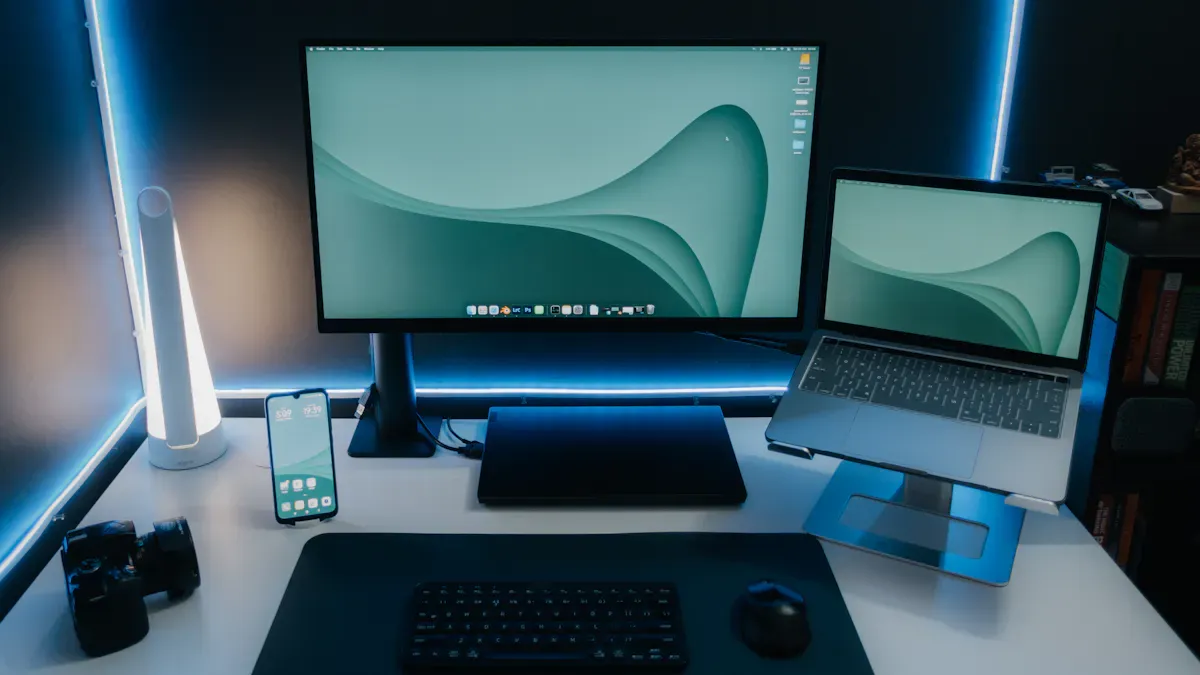
To set up a 4K monitor for optimal performance, you need to focus on hardware compatibility, proper connections, and software settings. Studies show that 32% of users face performance issues with older hardware and 28% encounter bandwidth constraints from outdated ports:
Issue | Percentage Affected |
|---|---|
Performance Bottlenecks | 32% |
Bandwidth Constraints | 28% |
You can avoid these problems by using modern GPUs and high-quality cables. This approach ensures you get the most from your display.
Key Takeaways
Ensure your graphics card supports 4K resolution and has the right ports. Use modern GPUs like GTX 950 or GT 1030 for optimal performance.
Select high-quality cables that match your monitor and GPU capabilities. Keep cable lengths under 3 meters to avoid signal loss.
Position your monitor ergonomically. Keep the top at eye level and sit 50–75 cm away to reduce eye strain and improve comfort.
Set Up a 4K Monitor: Hardware Essentials
Check GPU and Ports
Before you set up a 4K monitor, confirm that your graphics card supports 4K resolution at your desired refresh rate. Many modern GPUs, such as the GTX 950 and GT 1030, offer HDMI 2.0 or higher and DisplayPort 1.4 or above. These ports are essential for smooth 4K performance. Use the table below to compare common GPU and port options:
GPU Model | HDMI Version | DisplayPort Version |
|---|---|---|
GTX 950 | HDMI 2.0 | DisplayPort 1.2 |
GT 1030 | HDMI 2.0b | DisplayPort 1.4 |
GT 650 | N/A | N/A |
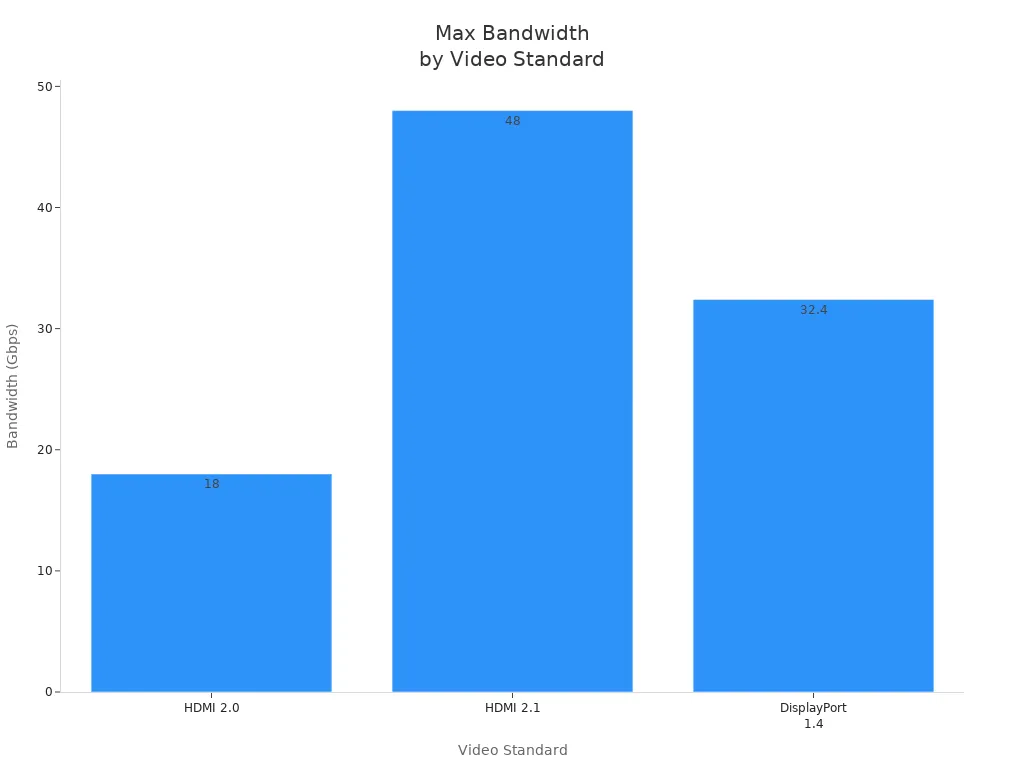
Most 4K monitors feature DisplayPort 2.1b and HDMI 2.1b. These ports support higher refresh rates and bandwidth, making them ideal for gaming and professional use.
Connect with Proper Cables
To set up a 4K monitor correctly, select high-quality cables that match your monitor’s and GPU’s capabilities. HDMI 2.1 and DisplayPort 1.4 cables deliver the best results for 4K at 60Hz or higher. Cable length also matters. For best signal integrity, keep cables under 3 meters. Longer cables can cause signal loss, color shifts, or audio dropouts.
HDMI Cable Length | 4K @ 30Hz | 4K @ 60Hz |
|---|---|---|
1 – 3 meters | Excellent | Generally good |
3 – 5 meters | Good, minor issues | Noticeable degradation |
5 – 10 meters | Moderate degradation | Severe degradation |
Over 10 meters | Not suitable | Not suitable |
Tip: Use certified cables and avoid exceeding recommended lengths to maintain HDR support and prevent signal issues.
Position for Ergonomics
Proper ergonomics play a key role when you set up a 4K monitor. Place the top of the screen at or just below eye level. Sit about an arm’s length (50–75 cm) from the display. Tilt the monitor slightly upward (10° to 20°) to reduce neck strain. This setup helps prevent eye strain, neck pain, and fatigue. A well-positioned monitor improves posture and boosts productivity.
Keep the top of the screen at eye level.
Maintain a distance of 50–75 cm.
Tilt the monitor upward by 10° to 20°.
A good ergonomic setup reduces musculoskeletal disorder risk by 60% and cuts neck pain by 40%.
Optimize Settings and Performance
Adjust Resolution and Scaling
When you set up a 4K monitor, you must configure the resolution and scaling settings for the best visual experience. On Windows, set the display resolution to 3840 x 2160. This setting ensures you use the full capabilities of your monitor. Windows also offers flexible scaling options to make text and icons readable. You can choose from several scaling percentages, as shown below:
Operating System | Scaling Options |
|---|---|
Windows 8.1 | 125%, 150%, 200%, 250% |
Windows 10 | 100%, 125%, 150%, 175%, 200%, 225%, 250%, 300%, 350% |
Windows 11 | Up to 225% by default, with custom scaling values available |
For most users, 150% or 200% scaling works well on a 27-inch 4K monitor. This adjustment keeps text sharp and easy to read.
On macOS, the system outputs at the native 3840 x 2160 resolution, even if you select a lower logical resolution. macOS uses HiDPI rendering to maintain text clarity. For a 27-inch display, a logical resolution of 1920 x 1080 is recommended. You can use the BetterDisplay app to fine-tune these settings if you need more control.
Setting Type | Description |
|---|---|
Default Resolution | macOS outputs at 3840 x 2160, even when a lower resolution is selected. |
Logical Resolution | 1920 x 1080 recommended for 27-inch 4K monitors. |
Scaling Method | HiDPI rendering keeps text sharp at lower logical resolutions. |
Custom Tools | BetterDisplay app allows advanced configuration. |
Tip: Always check that your scaling settings match your workflow needs. Proper scaling reduces eye strain and improves productivity.
Update Drivers and Firmware
You should always keep your graphics drivers and monitor firmware up to date when you set up a 4K monitor. Outdated drivers often cause performance issues and compatibility problems. For example, older drivers may not support 4K resolution or high refresh rates, leading to poor image quality and lag. Visit your GPU manufacturer’s website to download the latest drivers. Many monitor manufacturers also provide firmware updates that fix bugs and add new features.
Update GPU drivers regularly.
Check for monitor firmware updates.
Restart your system after installing updates.
Note: Updated drivers ensure your system can handle the demands of a 4K display and prevent common issues.
Calibrate Colors and Visuals
Proper color calibration enhances image quality and reduces eye fatigue. When you set up a 4K monitor, use built-in calibration tools or third-party software to adjust color profiles. Calibration allows you to fine-tune brightness, contrast, and color temperature.
Adjust color profiles for accurate reproduction.
Maintain consistent visuals for long work sessions.
Many monitors include presets for sRGB, Adobe RGB, or custom profiles. You can also use calibration devices for professional results.
A well-calibrated monitor not only improves your viewing experience but also protects your eyes during extended use.
Monitor Usage and Troubleshoot
After you set up a 4K monitor, monitor its performance and address any issues promptly. Common problems include slow application response and scaling glitches. Low GPU VRAM can cause slowdowns, especially if your graphics card has only 2GB of memory. Windows applications may also display incorrectly if scaling is not set properly.
Monitor GPU usage and VRAM consumption.
Adjust scaling settings if applications appear blurry or too small.
Use DisplayPort in MST mode for stable 60Hz 4K connections.
Avoid dual HDMI connections, as they may cause reliability issues.
Use high-quality HDMI, USB-C, or DisplayPort cables for the best signal.
If you experience connectivity problems, switch to DisplayPort for better performance at high resolutions.
By following these steps, you ensure your 4K monitor delivers optimal performance and a comfortable viewing experience.
To achieve the best results with your 4K monitor, follow these steps:
Set your Windows power plan to High Performance.
Update GPU and chipset drivers.
Monitor background tasks for CPU spikes.
Lower refresh rate if needed.
Use a lower resolution on a second monitor.
Regularly revisit your settings to maintain peak performance.
FAQ
What should you do if your 4K monitor displays at 30Hz instead of 60Hz?
Check your cable type and port. Use HDMI 2.0 or DisplayPort 1.4. Update your GPU drivers for full 60Hz support.
How can you fix blurry text on a 4K monitor?
Adjust your scaling settings in the display options. Set scaling to 150% or 200%. This change improves text clarity and readability.
Do you need a special cable for HDR on a 4K monitor?
Yes. Use a certified HDMI 2.0 or DisplayPort 1.4 cable. These cables support HDR and high refresh rates for optimal performance.
See Also
Seven Essential Tips To Select The Best 8K Display
Step-By-Step Guide To Finding Your Ideal Monitor Purchase
Advice On Selecting The Ultimate Gaming Monitor For You