What Is a Standalone Drawing Tablet and Who Should Use One
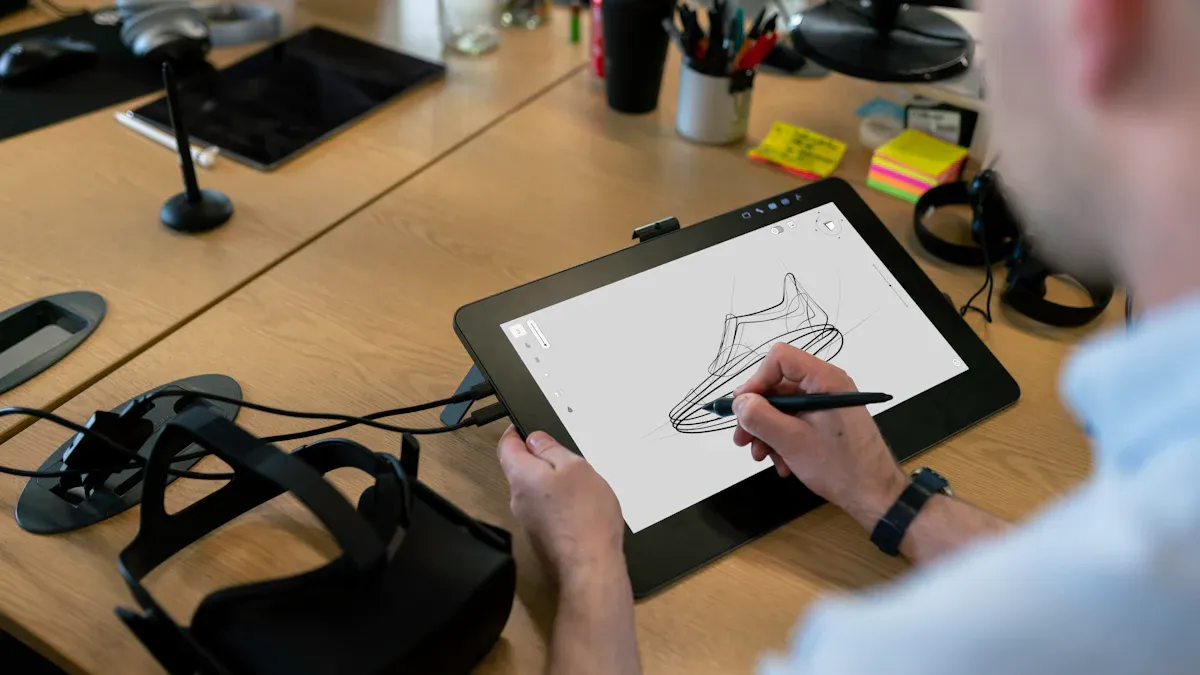
A standalone drawing tablet gives you everything you need to create digital art on the go. You don’t need to plug it into a computer, so you can draw anywhere inspiration strikes—at home, in a park, or while traveling. Many artists, students, and hobbyists love this freedom.
The market for drawing tablets keeps growing, thanks to tech improvements, booming digital art trends, and remote work.
More schools teach drawing digitally, and social media makes sharing your work easier than ever.
Key Takeaways
Standalone drawing tablets let you create digital art anywhere without needing a computer.
These tablets offer expert precision with pressure-sensitive pens and a natural drawing experience.
Artists, students, and hobbyists benefit from their portability, convenience, and easy setup.
Standalone tablets combine powerful hardware and software in a lightweight, all-in-one design.
Choosing the right tablet depends on your drawing style, where you work, and your budget.
What Is a Standalone Drawing Tablet
Definition and Key Features
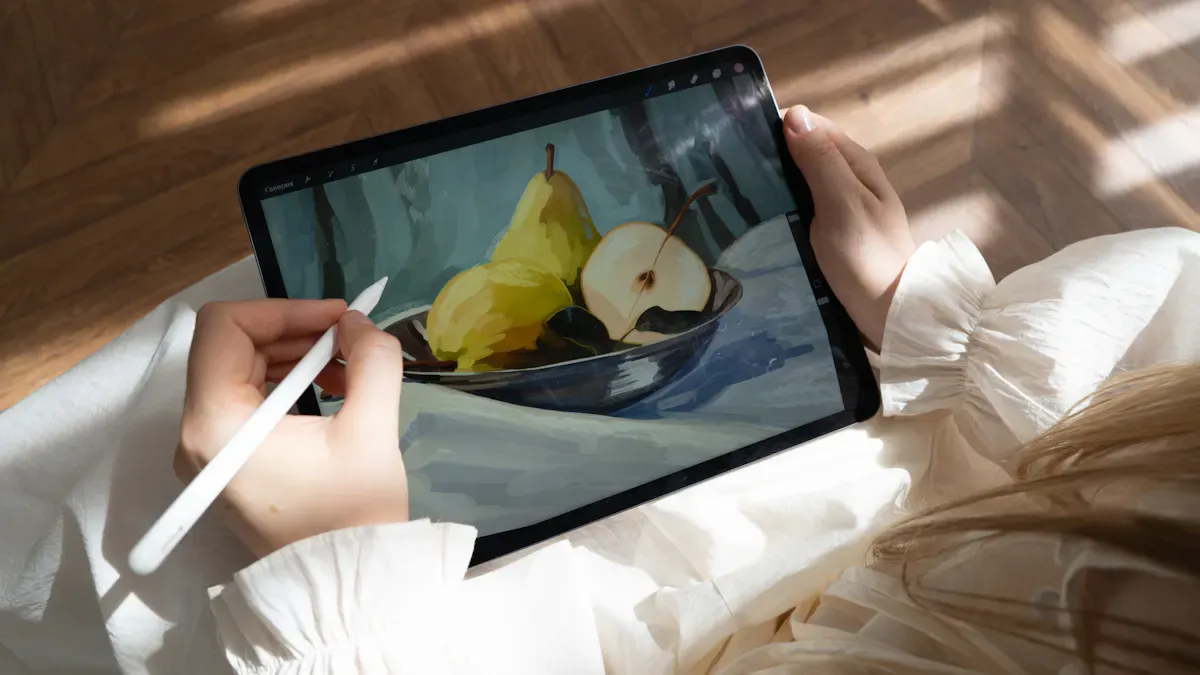
You might wonder what makes a standalone drawing tablet so special. This device packs everything you need for digital art into one compact package. You don’t need a computer to start drawing. Just turn it on, grab your stylus, and begin your creation wherever you feel inspired.
Standalone drawing tablets come with an all-in-one design. You get a screen that supports pen input, so you can draw directly on it. These tablets are lightweight and easy to carry. You can slip one into your backpack and take it to class, a café, or even on a trip. Artists love the freedom these tablets offer. You can sketch, paint, or edit photos without worrying about cables or bulky setups.
Here’s what you’ll find inside most standalone drawing tablets:
A responsive touchscreen for drawing
Pen input with pressure sensitivity and tilt control
Built-in hardware and software for digital art
Compact size and lightweight build for easy travel
You get expert precision with these tablets. The stylus lets you control every stroke, making it perfect for detailed illustrations, concept art, and animation. Many models feature silent operation, customizable buttons, and a large drawing area. Accessories like Quick Keys remotes help you speed up your workflow with shortcuts. You can use professional software for animation, 3D modeling, and large-scale illustration. These features make standalone drawing tablets a top choice for artists who want flexibility and performance.
Tip: If you want drawing tablets that don’t need a computer, standalone models are your best bet. You can create digital art anywhere, anytime.
Standalone vs. Drawing Displays
You might see other drawing tablets and wonder how they compare. Drawing displays usually need a computer to work. You connect them with cables, and they act as an extra screen for drawing. Standalone drawing tablets, on the other hand, work independently. You don’t need to plug them into anything.
Let’s break down the differences:
Device Type | Portability | Independence |
|---|---|---|
Standalone Tablets | Thin and light, portable with a laptop | Not independent, requires a computer |
Drawing Displays | Typically tethered, less portable | Not independent, needs a computer |
All-in-One Tablets | Fully portable, can be used anywhere | Independent, has its own OS and apps |
Standalone drawing tablets combine the best features of pen displays and computers. You can draw directly on the screen, but you don’t need to stay tethered to a desk. All-in-one tablets let you work anywhere, from a park bench to a busy airport lounge.
Here’s a quick list of what sets standalone drawing tablets apart:
You can use them anywhere without a computer
Drawing directly on the screen feels natural
Portability makes them perfect for travel and outdoor creation
Independence means you don’t rely on extra devices
Professional artists often choose standalone drawing tablets for their expert precision and deeper software support. You get more control over your drawing, and you can use advanced programs that may not work on regular drawing displays. If you value freedom, performance, and creative flexibility, a standalone drawing tablet could be the right tool for you.
How Standalone Drawing Tablets Work
Built-In Hardware and Software
When you pick up a standalone drawing tablet, you hold a complete studio in your hands. You don’t need to worry about plugging into a computer or setting up extra gear. These devices come with a built-in screen, powerful processors, and enough memory to handle your favorite drawing apps. You can start drawing as soon as you turn it on.
Most standalone drawing tablets run on their own operating systems. Some use Android, others use iPadOS, and a few have custom systems. You get access to a wide range of drawing apps, from simple sketching tools to advanced digital art programs. The pen performance stands out, giving you smooth lines and accurate pressure sensitivity. You can shade, blend, and add tiny details with ease.
Let’s see how these tablets compare to those that need a computer:
Standalone Tablets (e.g., iPads) | Tablets Requiring Computer Connection | |
|---|---|---|
Portability | High (lightweight, no computer) | Moderate (requires a computer) |
Software Access | Limited to mobile apps | Full desktop software access |
Customization | Basic | Advanced (custom shortcut keys) |
Precision | Good | Superior (better for professional use) |
Cost | $400 - $1,000 | $100 - $1,000 (varies widely) |
Ideal Users | Casual users, hobbyists | Serious artists, professionals |
You get great pen performance and portability, but you might miss some advanced desktop features. Still, for most drawing projects, a standalone drawing tablet delivers everything you need.
Drawing Tablets That Don’t Need a Computer
You want freedom when you create. Drawing tablets that don’t need a computer give you that. You can draw in your backyard, at a coffee shop, or while waiting for a flight. There’s no need for a desk or a tangle of wires. Just grab your tablet and start drawing.
Here are some popular models you might see:
Model | Key Features |
|---|---|
XPPen Magic Drawing Pad | 12.2-inch display, standalone Android system, 16K pressure sensitivity, 8000mAh battery, 8GB RAM, 256GB storage (expandable) |
Wacom MovinkPad 11 | Compact and portable, optimized for illustrators. |
Apple iPad Pro with Apple Pencil | Seamless integration with apps like Procreate, powerful performance. |
Samsung Galaxy Tab S9 Ultra | Massive AMOLED display, great multitasking, solid S Pen performance. |
Each drawing tablet in this list offers strong pen performance and reliable drawing experiences. You can focus on your creation, not your setup. Drawing on the go feels natural and fun. If you want a device that lets you draw anywhere, a standalone drawing tablet is your best choice.
Tip: Drawing tablets that don’t need a computer help you capture inspiration the moment it strikes. You never have to wait to start your next drawing.
Standalone Drawing Tablet Features
Portability and Convenience
You want a drawing tablet that fits your lifestyle. Portability makes a huge difference for artists like you. With a standalone drawing tablet, you can sketch, paint, or animate wherever you go. You might find yourself drawing in a café, on a train, or even outside in the park. This flexibility sparks creativity and lets you capture ideas the moment they appear.
You can create digital artwork in different environments.
Drawing during commutes or while traveling feels natural and fun.
You get more chances for spontaneous creation.
While these tablets offer freedom, you may notice some limits in processing power or software compared to a full desktop setup. Still, the convenience of grabbing your drawing tablet and starting your next masterpiece anywhere outweighs most drawbacks.
User Experience and Performance
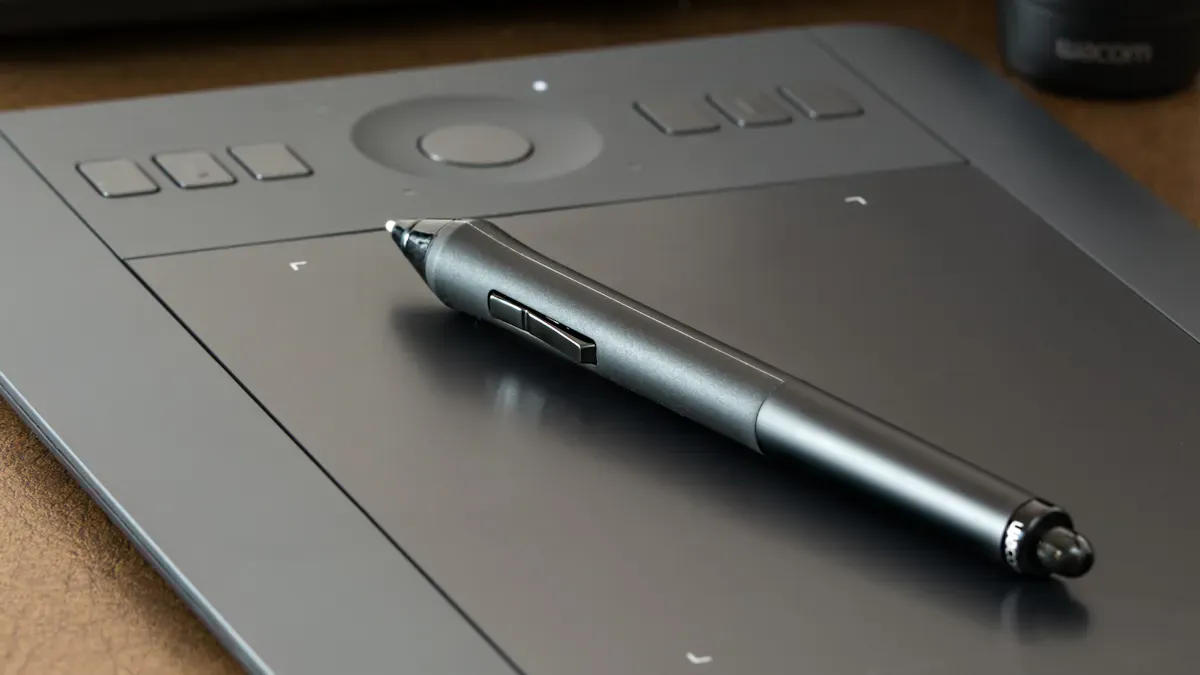
When you use a standalone drawing tablet, you want smooth performance and a natural feel. These tablets shine with professional drawing features like pressure sensitivity and tilt detection. You can control line thickness and brush strokes just by changing how you hold the stylus. The active area gives you plenty of space for detailed drawing. Shortcut keys help you speed up your workflow, so you spend more time creating and less time searching for tools.
Here’s a quick look at how user experience compares:
Feature/Aspect | Standalone Drawing Tablets | iPads |
|---|---|---|
Precision | Highly rated for precision and natural pen feel | Less precise on glass surfaces |
Customization Options | Up to 44 custom shortcuts via Quick Keys | Limited customization options |
Software Compatibility | Full desktop professional software ecosystems | Mobile apps with limited depth |
Portability | Requires a computer but offers professional features | Lightweight and easy to carry |
Ideal Use | Serious, complex, and long-term creative work | Casual, mobile sketching and note-taking |
You get a drawing experience that feels close to traditional art, but with all the benefits of digital art. Display quality matters too. Many tablets offer bright, color-accurate screens for professional visuals.
Best Drawing Tablets for Artists
Choosing the best drawing tablet depends on your needs. If you want the best drawing tablets for digital art, look for models with strong performance, great display quality, and reliable stylus support. Many professional artists recommend these options:
Tablet Name | Type | MSRP | Key Features |
|---|---|---|---|
Huion Kamvas Pro 19 | Pen Display | $1,099.00 | 18.4" 4K display, PenTech 4.0, dual pens, ultra-portable, color-accurate. |
Wacom Cintiq 16 | Pen Display | $699.95 | HD screen, precision, compact size for hobbyists and pros on a budget. |
Xencelabs Pen Display 24+ | Pen Display | $1,899.00 | 4K screen, exceptional color accuracy, complete accessory set, supports remote workflows. |
You can use these tablets for detailed illustration work, concept art, and digital painting. They support major creative software and offer the professional drawing features you need for complex projects. If you want a drawing tablet that keeps up with your imagination, these models deliver.
Tip: The right drawing tablet helps you focus on creation, not setup. Pick one that matches your workflow and inspires you every day.
Who Needs a Standalone Drawing Tablet
Artists and Designers
If you create art for a living or just love to draw, you know how important the right tools are. A drawing tablet can change the way you work. You get expert precision with pressure sensitivity and tilt support. This means you can make complex illustrations with smooth lines and perfect shading. Many professionals choose these tablets because they offer silent operation, a large drawing area, and multiple stylus options. You can use Quick Keys remotes for shortcuts, which makes your workflow faster.
You might want to see how these features help you:
Reason | Description |
|---|---|
Expert Precision | Lets you draw with accuracy for detailed art and design. |
Superior Hardware Features | Fanless design, silent operation, and a big space for drawing. |
Increased Efficiency | Customizable shortcuts boost your productivity. |
Deeper Software Functionality | Supports animation, 3D modeling, and large-scale illustration. |
You can work on character designs, storyboards, or digital paintings. Many creators enjoy drawing in studios, but you can also take your tablet to a café or a park. You don’t need to stay at your desk. You can create wherever you feel inspired.
Tip: If you want a device that keeps up with your imagination, a drawing tablet gives you the freedom to create anywhere.
Students and Hobbyists
You might be a student learning digital art or a hobbyist who loves to sketch in your free time. A drawing tablet gives you an affordable way to draw digitally. You don’t need a powerful computer or a big setup. You just turn on your tablet and start drawing.
Here’s why students and hobbyists choose these devices:
Reason | Description |
|---|---|
Expert Precision | Draw with pressure sensitivity and tilt for complex art. |
Superior Hardware Features | Silent operation and a large area for drawing. |
Increased Efficiency | Quick Keys remote for shortcuts. |
Deeper Software Functionality | Use animation, 3D modeling, and illustration apps. |
You can use your drawing tablet in class, at home, or while hanging out with friends. Many students find that digital art helps them solve problems, build patience, and express themselves. You also learn tech skills that will help you in the future.
Benefit | Description |
|---|---|
Try new colors, shapes, and ideas. | |
Builds patience and focus | Drawing takes practice and attention to detail. |
Boosts self-expression | Show your feelings and ideas through art. |
Improves tech skills | Get comfortable with digital tools early. |
You don’t need to worry about wires or heavy equipment. You can draw in your room, at the library, or even outside. Many hobbyists love the freedom to create whenever they want.
On-the-Go Creatives
You might travel a lot or just like to move around. A standalone drawing tablet fits your lifestyle. You can draw while waiting for a flight, sitting in a busy airport, or relaxing in a park. Traveling artists and other creators need tools that are easy to carry and quick to set up.
Let’s look at what makes these tablets perfect for on-the-go use:
Feature | Description |
|---|---|
Portability | Lightweight and easy to carry, perfect for travel. |
Powerful Processor | Handles high-performance drawing apps. |
Bright and Responsive Display | Makes your artwork look great in any light. |
Professional-Grade Apps | Use creative apps for both beginners and professionals. |
Pressure Sensitivity | Draw detailed lines and shades with ease. |
All-in-One Design | No need for a computer—just grab and go. |
You can sketch ideas in a café, paint landscapes outdoors, or finish a project while traveling. Many creators say that drawing on the go helps them capture inspiration right away. You don’t miss out on creative moments because your tools are always with you.
Note: If you want to create art anywhere, a standalone drawing tablet gives you the power and freedom you need.
Standalone vs. Other Drawing Tablets
Key Differences
You might wonder how a standalone drawing tablet stacks up against other options. Let’s break it down. A standalone drawing tablet works all by itself. You don’t need a computer. You just turn it on and start drawing. Traditional drawing tablets usually need a computer to function. You plug them in and use them as an input device. Drawing displays also require a computer, but you draw directly on their screen.
Here’s a quick comparison to help you see the differences:
Feature | Standalone Drawing Tablets | Traditional Drawing Tablets | Drawing Displays |
|---|---|---|---|
Built-in Screen | Yes | No | Yes |
Requires Computer | No | Yes | Usually Yes |
Drawing Experience | Direct, but sometimes limited by software | Indirect, uses computer screen | Direct and natural |
Precision | High, with pressure sensitivity and tilt | Varies, often less precise | High, professional grade |
Portability | High, all-in-one | High, but needs a computer | Medium, less portable |
Hardware Features | Advanced, with shortcut keys | Basic, mostly pen input | Advanced, with many options |
Software Ecosystem | Mobile and desktop apps | Desktop software | Desktop software |
Cost | Under $1,000 for most models | $100 to $1,000 | $400 to $2,000+ |
You can see that a standalone drawing tablet gives you a lot of freedom. You don’t have to carry extra gear. You get a direct drawing experience, which feels natural and fun.
Pros and Cons
Every drawing tablet has strengths and weaknesses. You want to pick the one that fits your style. Here’s what you get with a standalone drawing tablet:
Pros:
You can draw anywhere, anytime. No computer needed.
The all-in-one design makes travel easy.
High precision and pressure sensitivity help you create detailed art.
Many models are budget-friendly for beginners.
Cons:
Some standalone drawing tablets have limited software compared to desktop setups.
You might notice less power for very complex projects.
Screen size can be smaller than large drawing displays.
Tip: If you want a drawing tablet for quick sketches on the go, a standalone model is a great choice. If you need advanced features for professional work, you might prefer a traditional drawing tablet or a drawing display.
When you compare cost, standalone drawing tablets usually offer good value. You get portability and a complete drawing setup for under $1,000. Traditional drawing tablets can cost less, but you need a computer. Drawing displays give you the best performance, but they often cost more and are less portable.
Choosing the right drawing tablet depends on your needs. Think about where you like to draw, what kind of art you make, and how much you want to spend. The best drawing tablet is the one that inspires you to create every day.
A standalone drawing tablet gives you the freedom to create art anywhere. You get a smooth drawing experience, strong stylus support, and a portable design. Check out this quick guide before you decide:
Criteria | What to Look For |
|---|---|
Drawing Experience | Smooth, responsive surface and software support |
Stylus Support | High pressure sensitivity, tilt support |
Battery Life | At least 6-8 hours of active use |
OS | User-friendly, good app support |
Display Type | High resolution, good color accuracy |
Size | Portable or large canvas, based on your needs |
Weight | Light enough to carry easily |
If you want expert precision, silent operation, and tools that boost your productivity, a standalone drawing tablet could be your best creative partner. Think about your workflow, where you like to draw, and your budget. The right choice will help you enjoy drawing every day.
FAQ
Can I use a standalone drawing tablet for school projects?
Yes! You can use a standalone tablet for class notes, art assignments, or creative projects. Many students find these tablets helpful for both drawing and organizing schoolwork.
Do I need Wi-Fi to use a standalone drawing tablet?
You don’t need Wi-Fi to create art or use most apps. You only need a connection to download new apps, update software, or share your work online.
How long does the battery last on most standalone tablets?
Most standalone tablets last 6 to 12 hours on a single charge. Battery life depends on screen brightness and which apps you use. You can always check the battery level in your settings.
What’s the best way to protect my tablet while traveling?
Tip: Use a padded case or sleeve. Keep your stylus in a safe spot. Clean your screen often. These steps help your drawing tablet stay safe and ready for your next adventure.
See Also
Understanding Art Screens: Key Features And Definitions
Essential Tips For Improving Writing And Drawing On Screens
Choosing The Perfect Smart Board For Your Business Needs
Exploring Smart Boards: Functionality And Interactive Features
Understanding Business Smart Boards: Their Functionality Explained