White Screen Woes Simple Fixes for Your TV
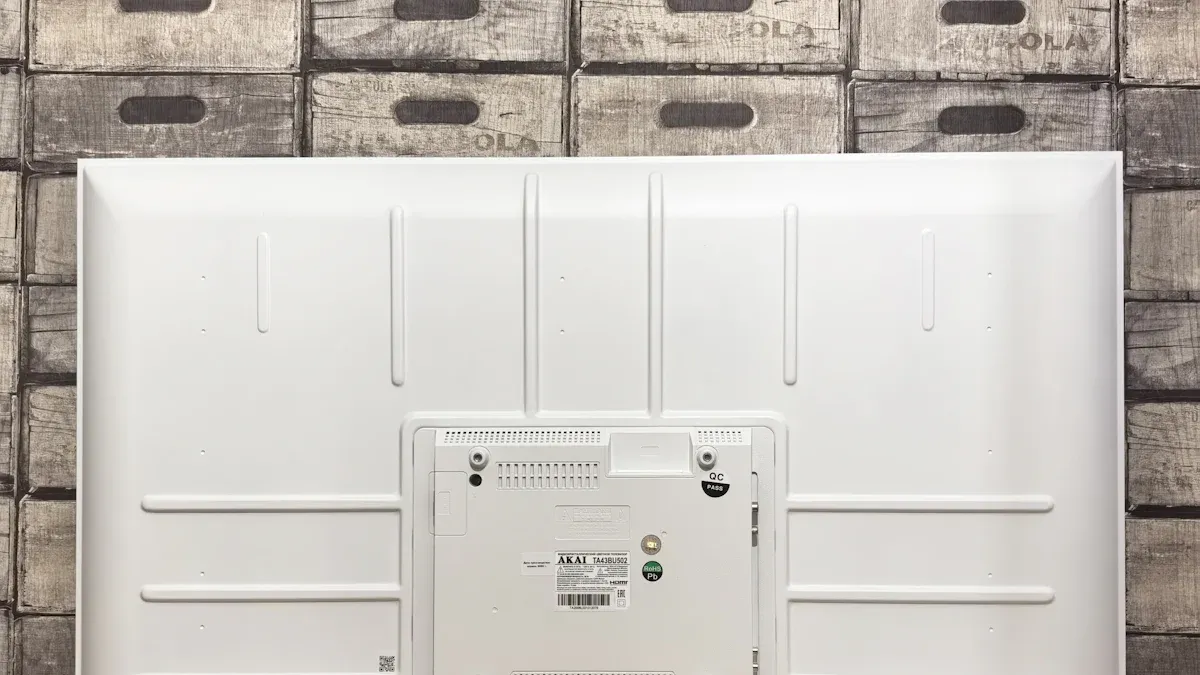
Of course. Here is an English version of the blog post, following the structure and content modules of the Chinese article you just received. It covers the same logical flow: understanding why a white screen happens, separating software/signal issues from hardware faults, a step‑by‑step troubleshooting guide, prevention tips, and a conclusion.
TV screen suddenly white? Don’t panic – here’s how to fix it
The sound is working, but your TV shows nothing but a blank white screen. You’re not alone – white screen problems are surprisingly common, whether you’ve just turned on the TV or were in the middle of a show. This article explains exactly why a white screen appears and gives you a complete, step‑by‑step path from a simple restart to identifying possible hardware failures.
Why does a white screen happen?
A white screen usually means the backlight is working (so the panel is lit), but the display panel itself isn’t receiving or processing the video signal correctly. Unlike a black screen – which often points to power or backlight failure – a white screen tells you that some parts are still running, but the signal path is broken.
Understanding that helps us split the problem into two clear categories: software/signal issues (most common, easy to fix) and hardware failures (rare, requires a professional).
一、Software & signal issues (90% of users can solve these themselves)
Most white screen problems are not hardware failures. They are temporary glitches in software or the signal chain. You usually don’t need any tools to fix them.
1. System glitch or outdated software
Like a computer, your TV’s operating system can crash or run into process conflicts. A simple temporary error can stop the picture from appearing. An outdated system may also have known bugs that affect video output.
2. Loose or poor signal connection
A loose cable is the #1 software‑related cause of a white screen. Because the backlight still works, the first thing to check is the signal source. Look at the back of your TV – are the HDMI, AV, or antenna cables firmly plugged in? Any loose connection can cause a white screen.
3. Interference from external devices
A set‑top box, game console, or streaming stick that outputs a faulty signal can also cause a white screen. Even the HDMI cable itself could be damaged (bent, frayed, or broken), leading to a white or flickering screen.
4. Accidentally enabled special features
Some LG TVs have an “Accessibility” option called “Grayscale” that makes the screen look white or black‑and‑white. Sony TVs have a “Daydream” mode that, in some cases, can cause a blank screen. Always check your TV’s settings for any unusual display modes.
二、Hardware failures (professional help recommended)
If you’ve ruled out all software and signal issues, the problem may be hardware. Here are the most common hardware reasons for a white screen.
1. Loose or detached LCD ribbon cable (LVDS cable)
The ribbon cable (LVDS or flat flex cable) carries the video signal from the main board to the display panel. If it becomes loose or partially disconnected, the screen may go white. Reseating this cable can often fix it, but it requires opening the TV.
2. Circuit board failure
T‑Con board (timing control board) – This board sends signals to the display panel. When it fails, you may see a white screen, vertical lines, or distorted images.
Main board – The main board processes all input signals. If it fails, you might get a white screen, no sound, or the TV won’t respond at all.
Blown fuse – A small fuse on the power supply or T‑Con board can blow. Replacing it requires professional soldering.
3. Damaged display panel
If the TV was dropped, hit, or exposed to extreme temperatures, the LCD panel itself might be broken. Panel damage is the most expensive repair – sometimes it costs more than buying a new TV.
4. Unstable power supply
The power supply board provides stable voltages to all parts of the TV. If capacitors age or the voltage becomes unstable, some components may malfunction, leading to a white screen.
三、Step‑by‑step troubleshooting and repair
Step 1: Software & signal checks (you can do these yourself)
① Power cycle (restart) the TV
Press and hold the physical power button on the TV for about 30 seconds. While holding it, unplug the power cord from the wall. Wait 60 seconds, then plug it back in and turn the TV on. This clears temporary memory and reloads the system.
② Check cables and signal source
Look at all cables on the back of the TV. Make sure they are pushed in firmly. If you use HDMI, inspect the cable for damage. Try wiggling it gently – if the screen flickers, the cable or port is likely bad.
③ Change input source or device
Use your remote to switch between different inputs (HDMI1, HDMI2, AV, etc.). If the white screen disappears on another input, the problem is with the original device or its cable. Try connecting a different device (like a DVD player or laptop) to the same input.
④ Update the TV software
Go to Settings > Support > Software Update (the exact path varies by brand). Install any available updates. Manufacturers often release fixes for display glitches.
⑤ Run a self‑diagnosis (picture test)
Many modern TVs have a built‑in test. On Samsung, it’s Support > Self Diagnosis > Picture Test. On LG, it’s Settings > All Settings > Support > Picture Test. If the test image looks normal, your TV hardware is fine – the issue is external.
⑥ Factory reset
If nothing else works, try a factory reset. Go to Settings > General > Reset to Initial Settings. Warning: This erases all your settings (Wi‑Fi, picture adjustments, channel tuning). Make sure you know your Wi‑Fi password before doing this.
Step 2: Hardware diagnosis (contact a professional)
If you’ve done all of the above and the white screen remains, the problem is almost certainly hardware. Do not open the TV yourself unless you have experience – you could damage it further or risk electric shock.
If your TV is still under warranty, call the manufacturer’s support first. Repairs may be free.
If the warranty has expired, find a trusted local TV repair shop. Describe exactly what you’ve tried so they can diagnose faster.
四、How to prevent white screen problems
A few good habits can greatly reduce the chance of a white screen (and other issues):
Avoid hard power cuts – Always use the remote or the power button to turn off the TV. Do not pull the plug while the TV is on.
Keep it cool and ventilated – Leave at least 10–15 cm (4–6 inches) of space behind the TV. Avoid placing it near a radiator, heater, or direct sunlight.
Protect from moisture and heat – Don’t use the TV in a bathroom or kitchen where steam can get inside. High humidity slowly damages components.
Move the TV gently – When rearranging your room, lift the TV carefully. Jarring or bumping it can loosen internal ribbon cables.
Clean the screen properly – Use a soft, dry microfiber cloth. Never spray liquid directly onto the screen – moisture can seep into the edges and cause electrical issues.
Final thoughts
A white TV screen is annoying, but in most cases it’s not a disaster. Start with the simple software fixes – restart the TV, check every cable, try a different input. Chances are, one of those steps will bring your picture back. Only when you’ve tried everything should you suspect a hardware failure and call a professional.
Has your TV ever shown a white screen? What fixed it for you? Share your experience in the comments – you might help someone else solve the same problem.
FAQ
Why does my TV screen turn white suddenly?
You might see a white screen if a cable comes loose or your TV’s settings change. Sometimes, a power glitch causes this. Try unplugging your TV for a minute and plugging it back in.
Can a white screen mean my TV is broken?
Not always! Most times, you can fix it with simple steps. If nothing works and you see bright spots or cracks, your TV might need repair.
What should I do if only one HDMI port shows a white screen?
Try another device in that port. If it still shows white, the port could be faulty. Use a different HDMI port if possible.
Will a factory reset erase my apps and settings?
Yes, a factory reset will remove your apps, accounts, and custom settings. Only use this step if nothing else works. You’ll need to set up your TV again.
See Also
Understanding White Spots on LCD Screens: Causes and Solutions
Effective Ways to Resolve Flickering Issues on Your Monitor
Identifying LCD Bruising: Signs and Remedies to Consider