Why yellow spots on the screen
You may notice yellow spots on your screen when the tiny LEDs inside start to wear out or lose their brightness. These spots often show up because of hardware problems like pressure damage, aging, or differences in how each LED handles heat and power. Devices such as the iPad Pro and some OnePlus phones have users reporting this issue. If you understand why these spots happen, you can spot problems early and protect your device.
Key Takeaways
Yellow spots on screens often result from physical damage, aging, or LED inconsistencies. Handle devices gently to avoid these issues.
Environmental factors like heat and humidity can accelerate screen degradation. Store devices in cool, dry places to prolong their life.
Regular cleaning and checking for software updates can help fix minor discoloration. If spots persist, seek professional repair.
Using quality screen protectors and avoiding direct sunlight can prevent yellow spots from forming. Protect your device to keep it looking new.
If your device is under warranty, contact support for repairs. Many manufacturers offer free fixes for yellow spot issues.
Causes Of Yellow Spots

Pressure And Physical Damage
You might notice yellow spots after your device experiences physical stress. When you drop your phone or press too hard on the screen, you can damage the delicate layers inside. This damage often misaligns the liquid crystals or harms the backlight. Even leaving a heavy object on your device can cause visible discoloration.
Dropping your device can create pressure points that lead to yellow spots.
Pressing the screen with sharp objects or fingers may disrupt the screen’s structure.
Storing your device under heavy items can cause long-term damage.
Tip: Handle your device gently and avoid placing objects on top of it to prevent these issues.
LED/LCD Inconsistency
All LED lighting devices, including LCD backlights, face a common challenge. Each LED has a unique brightness-temperature-current curve. When you use a constant current source, some LEDs may shine brighter at first. Your eyes might not notice these differences right away, especially at high brightness levels. Over time, the brighter LEDs work harder and wear out faster. This process causes them to dim and can create yellow spots on your screen.
In devices with parallel circuits, like MiniLED backlights, some LEDs may lose brightness before others. If your device uses blue LEDs with quantum dots, you might see yellowish dark spots as the blue light fades. These spots can grow larger and eventually turn black if the LEDs fail completely. This issue does not come from software problems. If you see discoloration in your device’s UEFI settings, you likely face a hardware problem that requires professional support.
Users often report yellow spots on screens after only a short period of use.
Many people notice these spots after production or during normal handling.
Some users consider returning their devices because of these issues.
Aging And Environmental Effects
As your device ages, the materials inside the screen start to break down. Heat, light, and oxygen all speed up this process. The table below shows how different mechanisms cause yellow discoloration:
Mechanism | Description |
|---|---|
Photodegradation | UV exposure, heat, and chemical reactions break down polymers and pigments. |
Chemical Changes | Light and oxygen degrade plastics, changing their color. |
Free Radicals | Oxygen and free radicals trigger reactions that cause yellowing. |
You also need to watch out for environmental factors. High temperatures can damage the color filters in LCDs, making yellow spots appear faster. Humidity above 60% can weaken the adhesives inside your screen, leading to cracks and more discoloration. If you use your device in a hot room, the rate of screen degradation increases. Sun exposure can also cause yellow spots, even if you store your device carefully.
Prolonged UV exposure and heat can cause adhesives to yellow.
Humidity and high temperatures speed up the breakdown of screen materials.
Users often notice yellow spots after using their devices in warm or humid environments.
Note: If you see yellow spots in your device’s UEFI settings, software fixes will not solve the problem. You should contact support if your device is still under warranty.
How Yellow Spots Develop
Parallel And Series Circuit Effects
You may wonder why yellow spots appear in some areas of your screen but not others. The answer often lies in how the LEDs inside your device connect and work together. In many modern screens, manufacturers use parallel circuits, especially in MiniLED backlights. Each LED in a parallel circuit receives the same voltage, but small differences in their electrical properties mean some LEDs draw more current and shine brighter at first. Over time, these harder-working LEDs wear out faster. You start to notice yellow spots as these LEDs dim before the others.
In devices that use series circuits, such as some LED strips or non-zoned TVs, all LEDs share the same current. If one LED develops a problem, it can cause overvoltage and overheating in that spot. This stress often leads to a complete failure of the LED. When this happens, you may see an entire section of your screen go dark, not just a small spot. This effect is common in lighting fixtures and some older TV designs.
If your device includes temperature compensation, the LEDs can last longer. Temperature compensation helps balance the workload among LEDs, reducing the risk of early failure and slowing down the development of yellow spots.
Many users report yellow patches after about 10-11 months of use.
Dust particles or a burnt polarizer plate can also cause yellow spots, especially on white backgrounds.
Backlight And Quantum Dot Issues
The type of backlight technology in your device also plays a big role. Traditional backlights often use yellow phosphors, which can break down and form yellow spots over time. Quantum dot technology improves color performance by making colors more pure and vivid. This technology reduces the need for color filters and lowers the risk of yellow spot development.
If your device uses blue LEDs with quantum dots, you get better color quality and fewer yellow spots. However, if the blue LEDs start to fail, you may still see yellowish dark spots that can grow larger and eventually turn black. Prolonged use and high temperatures speed up this process, but temperature compensation can help extend the life of your screen.
Quantum dots help prevent yellow spots by providing more efficient color output.
Traditional backlights are more likely to develop yellow spots due to aging materials.
Fixing And Preventing Yellow Spots
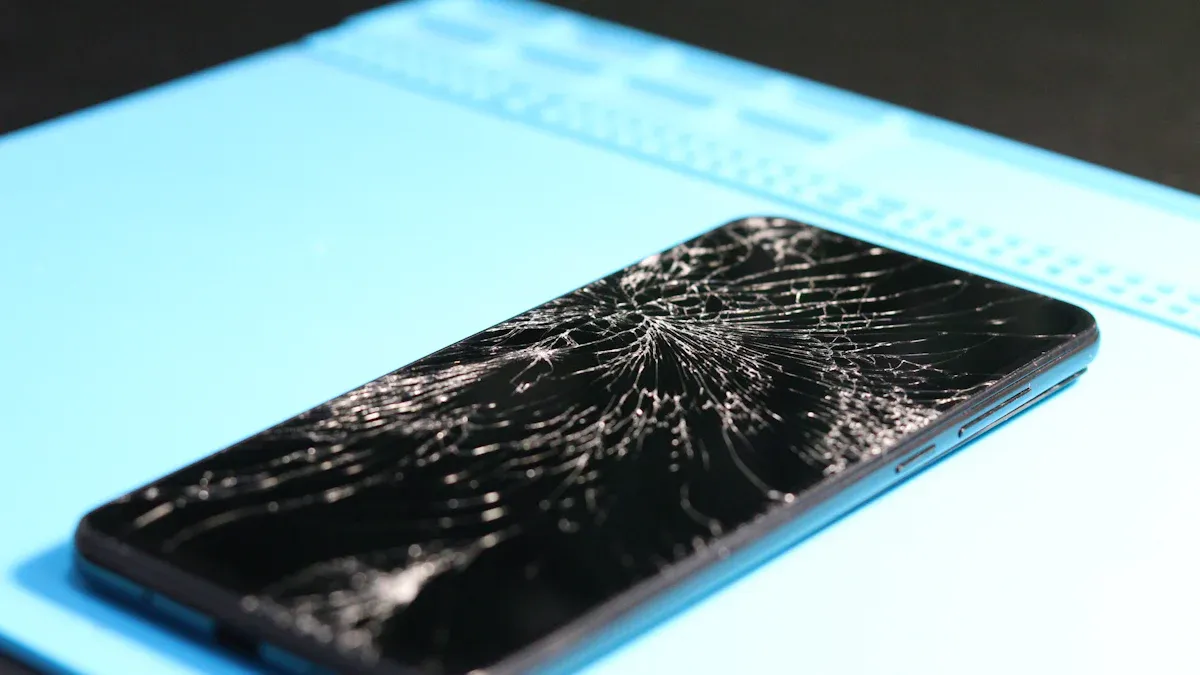
Troubleshooting Steps
You can start by checking if the yellow spots come from something simple. Sometimes, dust or air bubbles under a screen protector cause discoloration. Remove the protector and clean the screen with a soft, dry cloth. If the spots remain, check your device’s display settings. Adjust the color balance or run a built-in display test. Some devices let you update the firmware, which can fix color calibration problems.
Here is a table showing how common methods work:
Method | Effectiveness |
|---|---|
Cleaning the screen | Works well for removing debris or air bubbles causing yellow spots. |
Checking for software issues | Helps if the problem comes from software; tools can fix yellow tint. |
Updating firmware | Can improve color accuracy and remove yellow tint if caused by calibration. |
If you see yellow spots even in the device’s UEFI or BIOS menu, you face a hardware issue. Software fixes will not help in this case. You should move to the next steps.
Repair Or Replacement
When cleaning and software checks do not solve the problem, you need to consider repair or replacement. Most yellow spots come from hardware issues inside the screen. These problems often happen because each LED in your device has a slightly different brightness, temperature, and current curve. Over time, some LEDs work harder and wear out faster. This leads to uneven lighting and visible spots.
If your device is under warranty, contact the manufacturer’s support team. Many companies, such as HP, cover repairs for yellow spot issues at no cost during the warranty period. You should not try to repair the screen glass only. Replacing just the glass can cause more damage. A full screen replacement gives the most reliable fix for yellow spots.
Contact support if your device is under warranty.
Ask for a full screen replacement rather than a glass-only repair.
Do not try to fix hardware issues yourself, as this can void your warranty.
Prevention Tips
You can take steps to prevent yellow spots from forming on your screen. Keep your device out of direct sunlight. High temperatures speed up the aging of screen materials and make yellow spots appear faster. Use a quality screen protector to block dust and reduce the risk of pressure damage. Store your device in a cool, dry place. Avoid using your device in hot or humid environments.
Here are some tips to help you:
Keep devices away from sunlight and heat sources.
Use a good screen protector.
Store devices in cool, dry places.
Handle screens gently and avoid pressing hard on them.
If your device uses advanced backlight technology, such as MiniLED or quantum dots, you may see fewer yellow spots. These technologies help balance the workload among LEDs and slow down aging. Temperature compensation features also help LEDs last longer.
Tip: Early action can prevent small yellow spots from growing larger. Regular cleaning and careful handling keep your screen looking new.
If you notice yellow spots that do not go away with cleaning or software updates, seek professional help. Some hardware issues, especially those visible in UEFI menus, cannot be fixed at home.
Yellow spots appear because each LED in your screen ages differently. Some LEDs work harder and fade faster, especially in parallel circuits like MiniLED backlights. You can often fix minor issues by cleaning your screen or updating software. For persistent spots, try these steps:
Check for software updates and color calibration.
Look for signs of pressure, heat, or humidity damage.
If spots remain, contact support for repair or replacement.
Many users report free repairs or replacements, even out of warranty. Early action helps keep your screen clear and bright.
FAQ
Why do yellow spots appear on my screen over time?
You see yellow spots because each LED ages differently. Some LEDs work harder due to unique brightness, temperature, and current characteristics. Over time, these LEDs dim faster, which causes uneven lighting and visible yellow spots.
Can pressure or physical damage cause yellow spots?
Yes. If you press hard on your screen or drop your device, you can damage the layers inside. This damage often leads to misaligned crystals or backlight issues, which show up as yellow spots.
Why do some screens develop yellow spots faster than others?
Screens with parallel circuits, like MiniLED backlights, may show yellow spots sooner. Some LEDs draw more current and fade faster. Devices with temperature compensation last longer because they balance the workload among LEDs.
Is it possible to fix yellow spots at home?
You can clean your screen and check for software issues. If yellow spots remain, the problem is likely hardware-related. You should contact support for repair or replacement, especially if you see spots in the BIOS or UEFI menu.
How can I prevent yellow spots from forming?
You can protect your screen by keeping it away from heat, sunlight, and humidity. Handle your device gently and use a quality screen protector. Advanced backlight technologies and temperature compensation features also help reduce the risk of yellow spots.
See Also
Understanding White Spots on LCD Screens and Their Solutions
Identifying LCD Bruising and Effective Remedies to Apply
Exploring Eye Protection Screens for Enhanced Visual Safety